
Users
On this page
This guide covers how to create, edit, invite, and delete users within an organization. It also details how to assign roles and departments, manage user statuses, and control access permissions for efficient user management.
A User in Grower is an individual account under an Organization. Users can either be invited by a Grower Admin or sign up directly on the Grower Platform. Each user is assigned to a Department and a Role, which determines their level of access and privileges within the organization.
Accessing Users
To manage roles, navigate to the Mission Control page in the side menu. Expand the User Management tab and click on the "Users" tab. This will take you to the Users page, where you can view, create, duplicate, edit, and delete roles based on your permissions.
Viewing Users
On the Users page, you can search and sort users by name, email, department, and role. Filters are available to narrow results by organization, department, role, or user status (active or inactive).
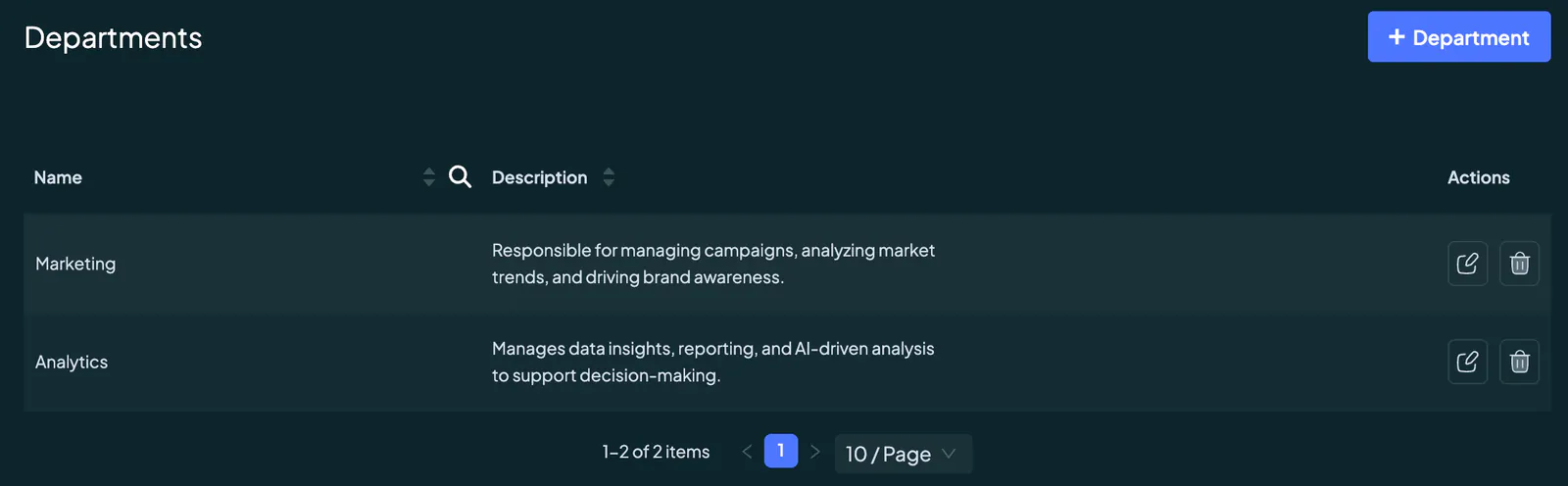
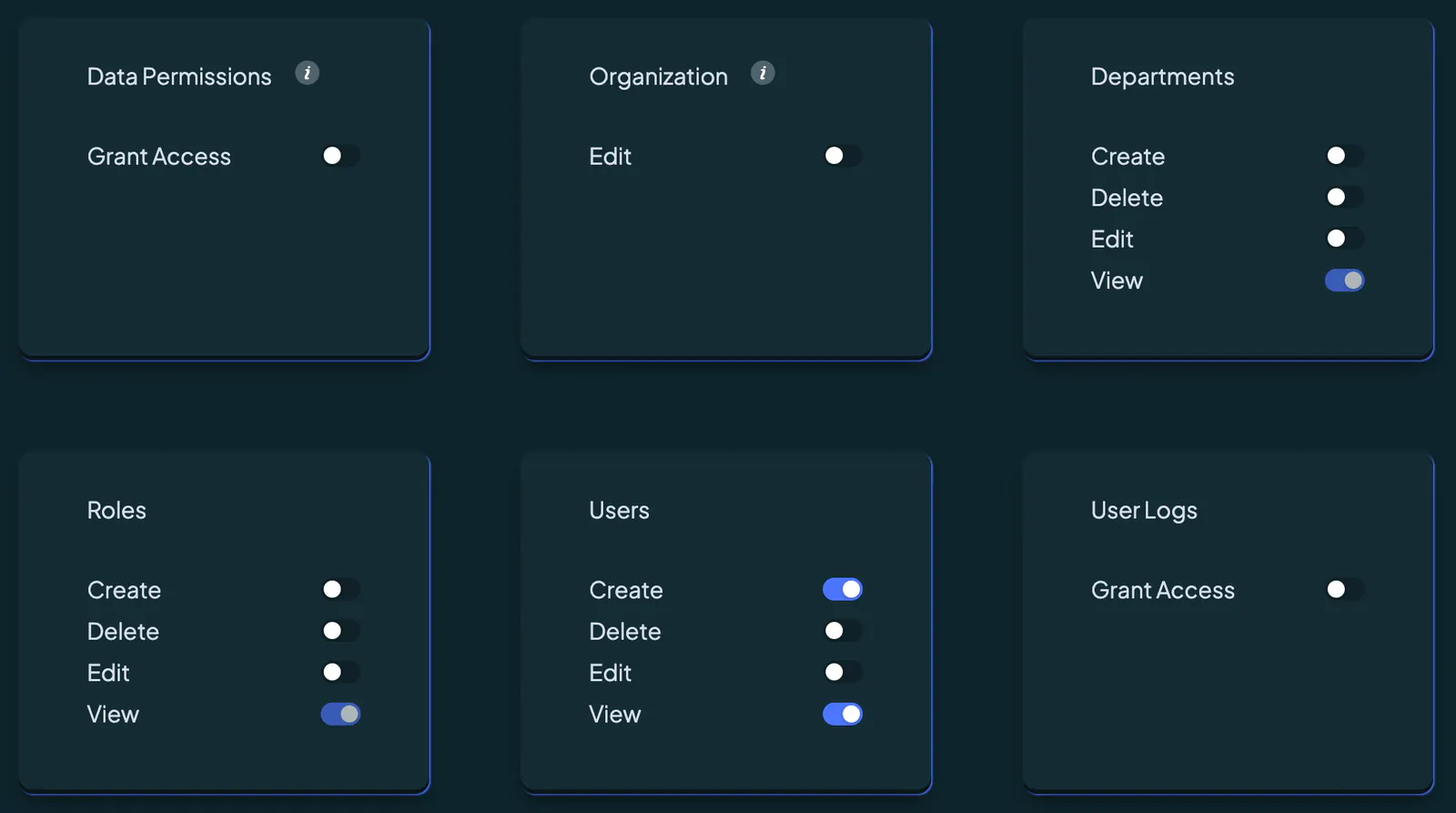
To access the Users page, you must have the View User permission enabled under the Users section in Mission Control, otherwise the tab will
Access to this page is granted only if your role includes the View Departments permission. If this permission is not assigned, the Roles tab will not be visible to you. Refer to our Roles Guide for more details on permissions and their functionalities.
Creating A User
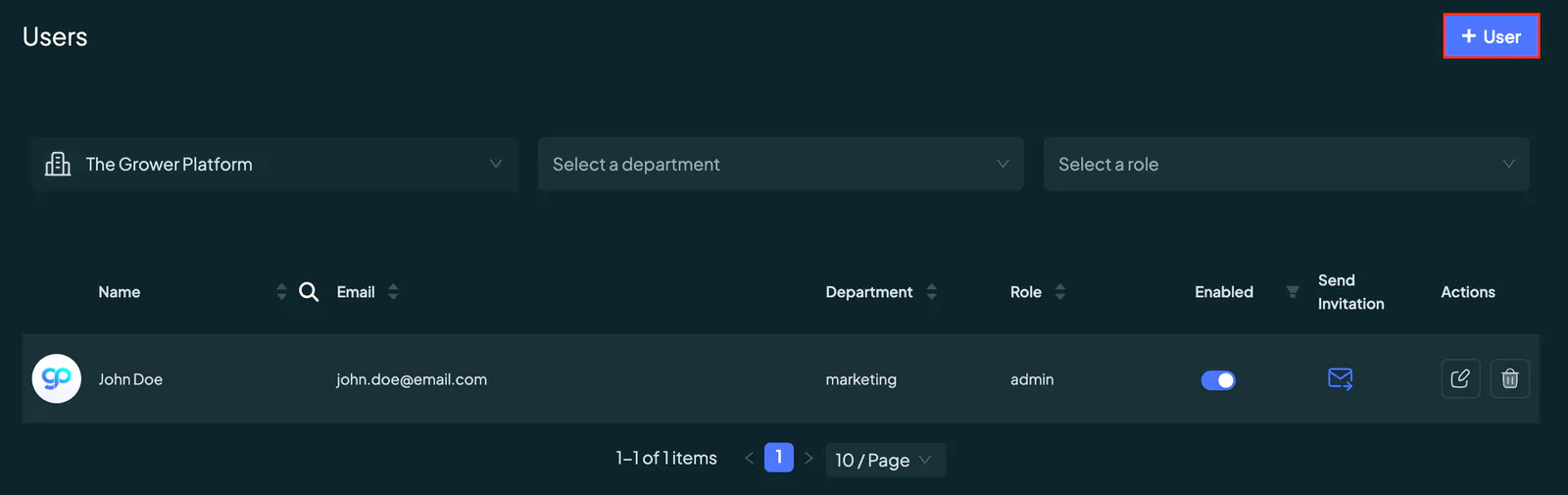
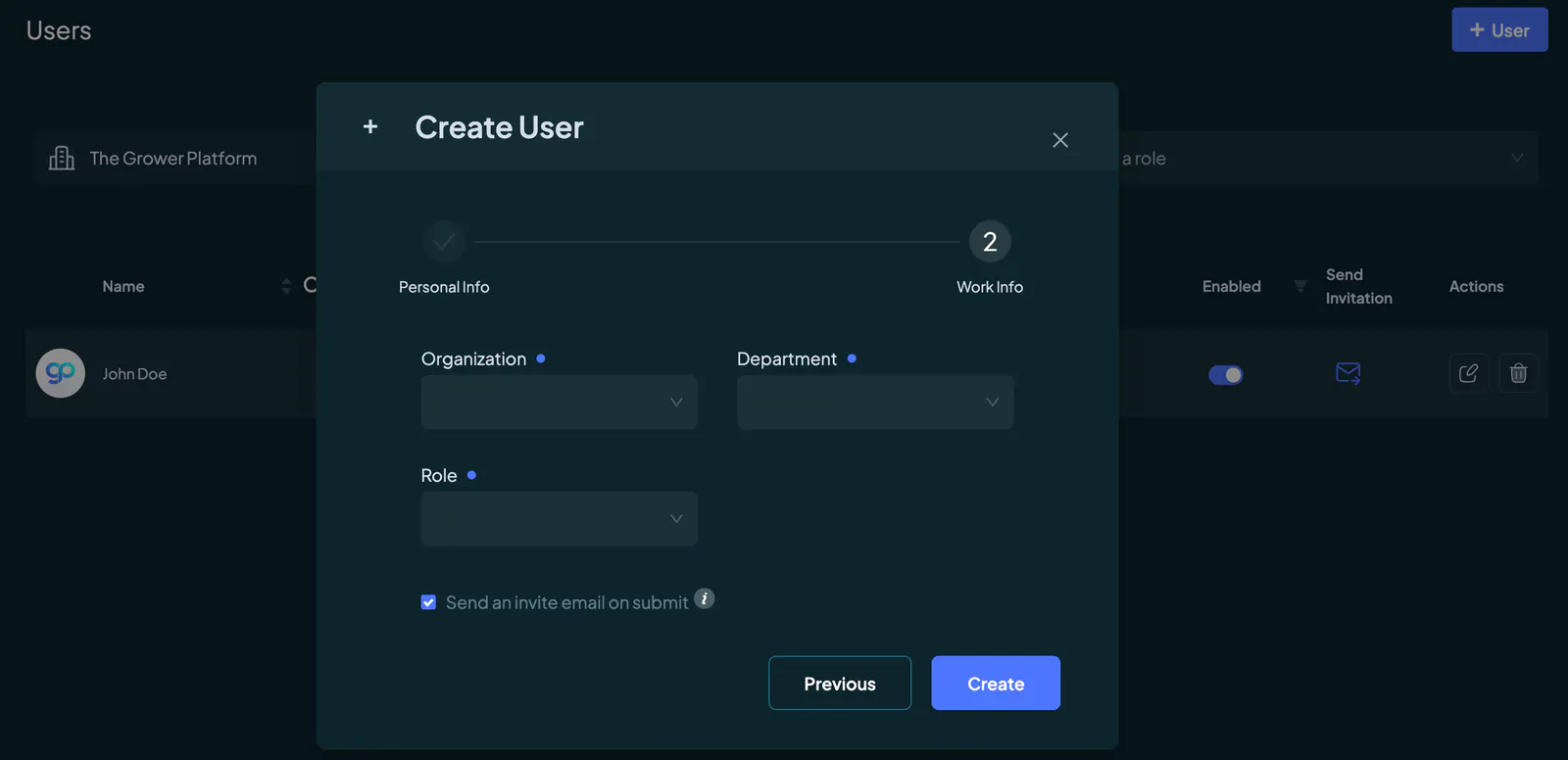
To create a new user, click on the “+ User” button at the top-right corner of the Users page to open the user creation popup. In the first step, enter the user’s first and last name along with their email address. In the second step, select the organization (only available to admins), department, and role.
If you don’t want to send an invitation email immediately, untick the Send an invite email on submit checkbox. You can later send the email through the invite icon. If a user needs access to more than one organization, such as in an agency setting, contact Grower Support at support@thegrower.ai for assistance, as this functionality is not yet available within the platform.
You can add a user only if your role includes the Create User permission. Creating a user requires you to have View Departments and View Roles permissions to select the appropriate department and role for the new user. Refer to our Roles Guide for details on user permissions.
Inviting A User
Once a user has been created, you can send them an invitation email by clicking the invite icon. This email allows the user to set or reset their password and gain access to the platform.
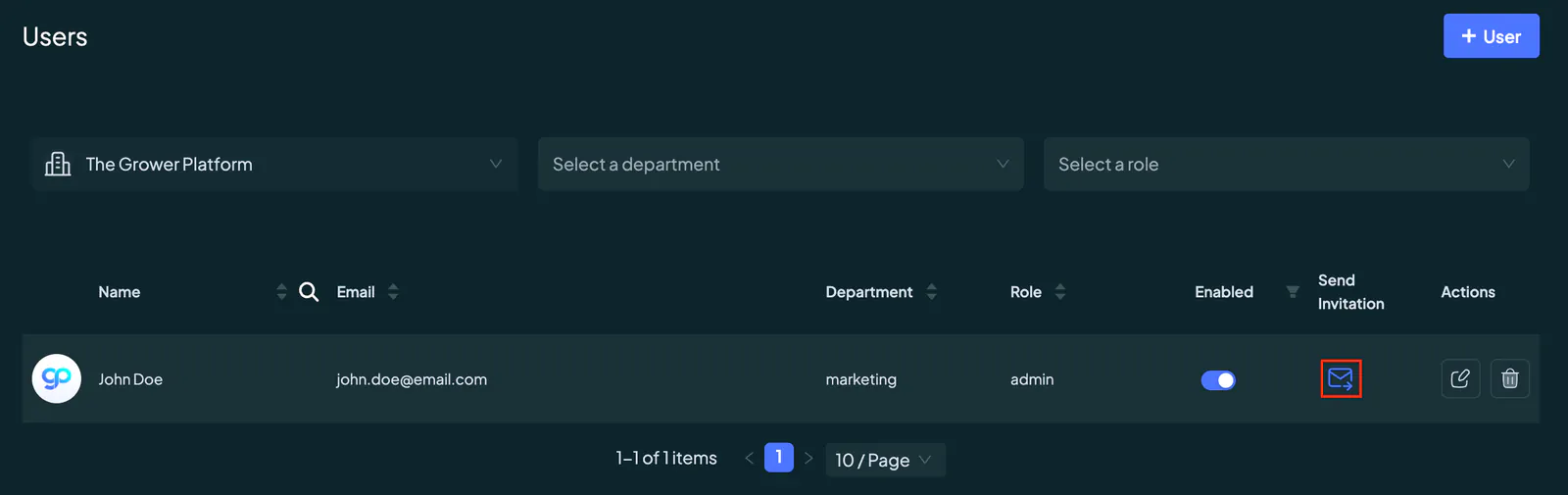
Inviting a user requires the Edit User permission. Refer to our Roles Guide for more details.
Editing A User
To update a user’s attributes, click on the edit icon and modify their name, email, department, or role in the popup form. It’s important to note that a user’s organization cannot be modified after creation.
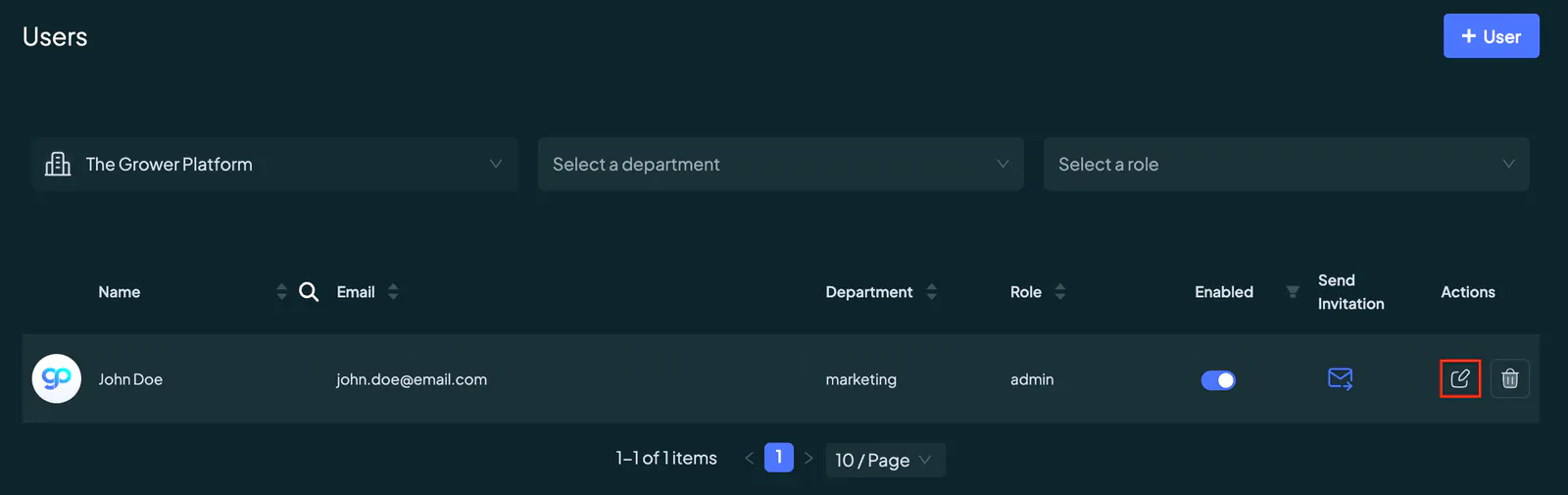
You can also modify a user’s status using the switch in the Enabled column. Toggling the switch off deactivates the user, making them invisible in the platform and restricting their access. Reactivating the user can be done by toggling the switch back on. All data remains saved during this process.
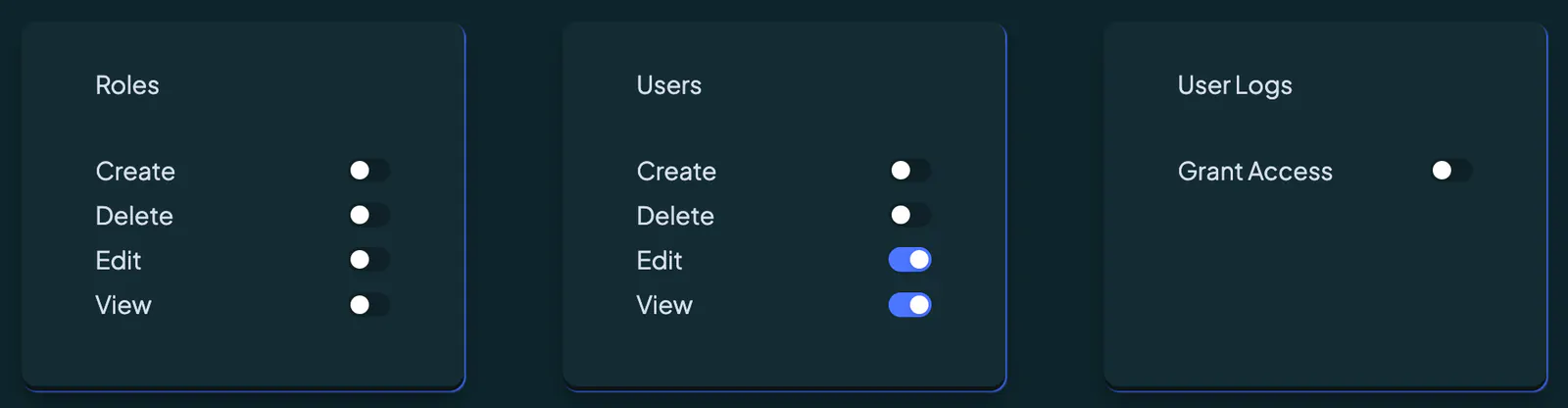
Editing or modifying a user requires the Edit User permission. Refer to our Roles Guide for details.
Deleting A User
To delete a user, click on the trash can icon next to their name. This action removes the user permanently from the platform. If the user is part of critical workflows or roles, ensure all tasks are reassigned before deletion.
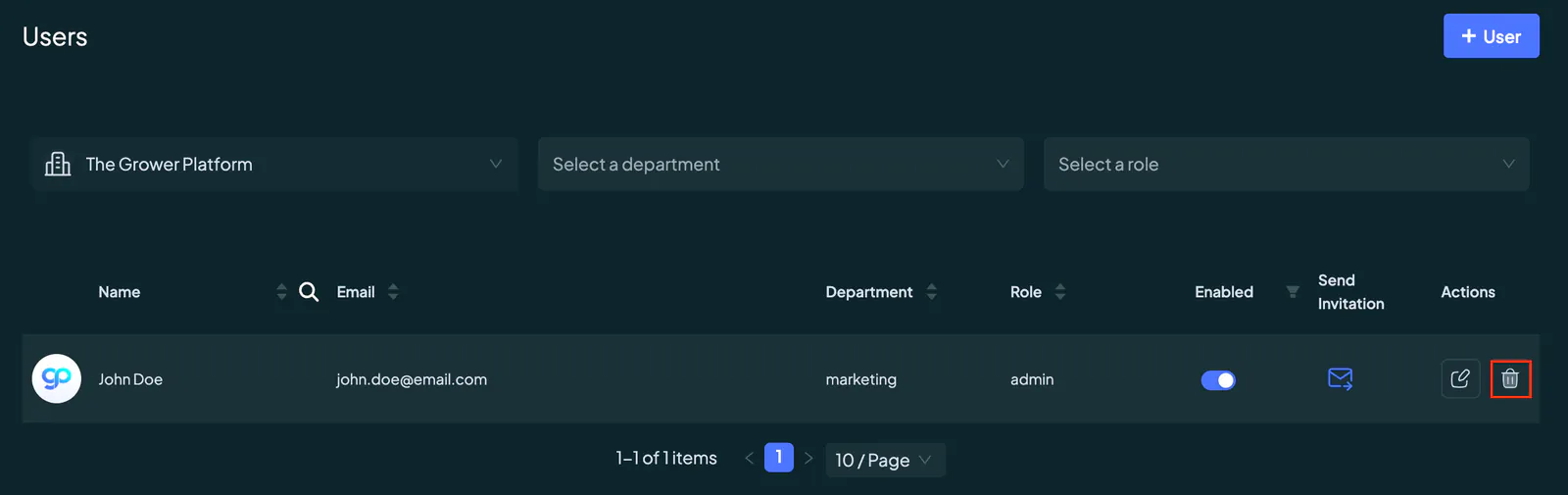
Deleting a user requires the Delete User permission. Refer to our Roles Guide for more details.