Departments
On this page
This guide covers the Departments feature in Grower, explaining how to create, edit, and delete departments within an organization. It details how to group users by roles, manage department settings, and ensure proper organization structure for efficient user management.
A Department in Grower is a unit that groups users within an organization. Departments are unique to each organization and serve as a way to structure users based on their roles and responsibilities, facilitating better organization management and role assignment.
Accessing Departments
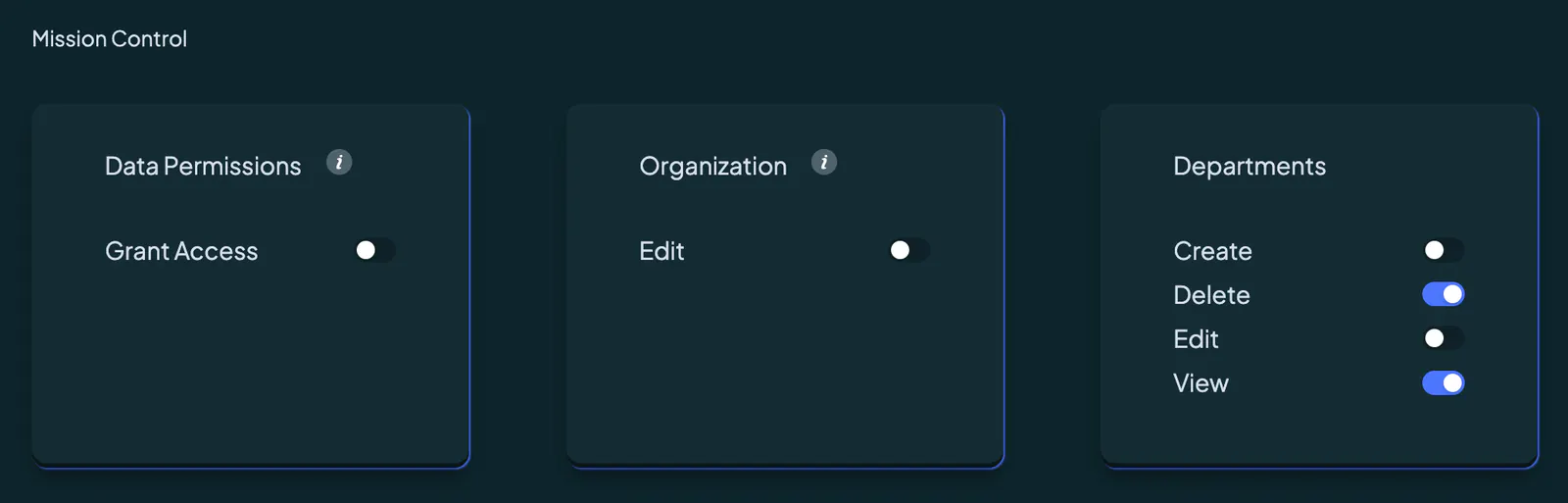
To access the departments page, navigate to Mission Control via the side menu. Expand the User Management tab and click on the "Departments" tab. This will take you to the Departments page, where you can view, create, edit, and delete departments based on your permissions.
Viewing Departments
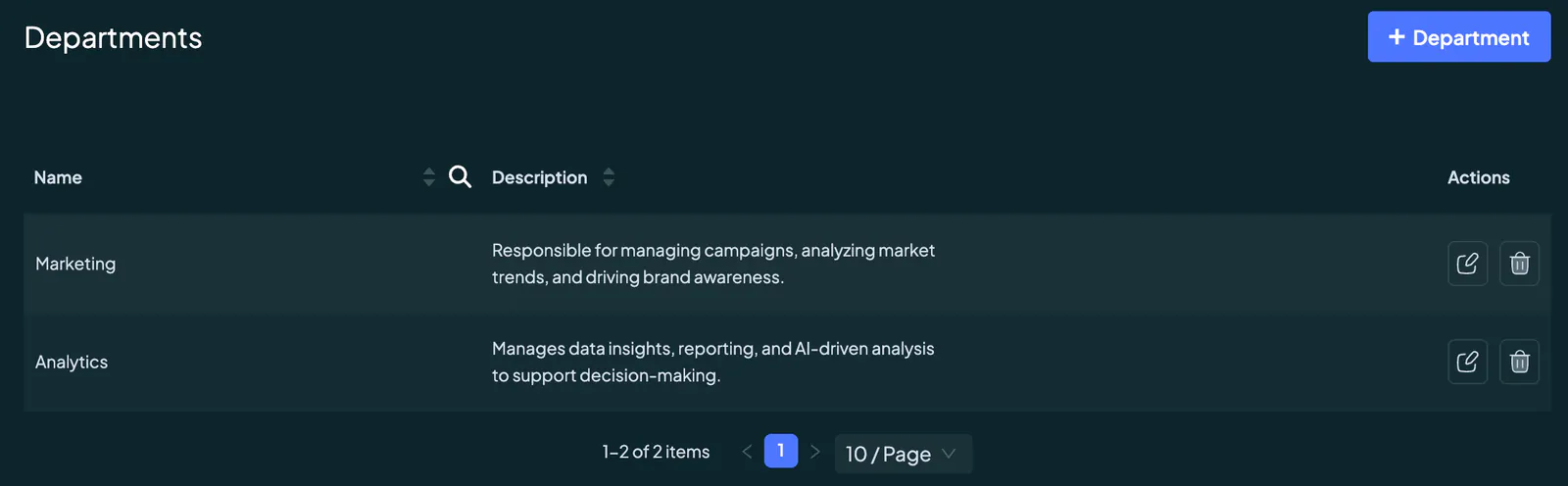
The Departments page displays all existing departments, including their names and descriptions. You can search through departments names or sort them alphabetically by name or description.
Access to this page is granted only if your role includes the View Departments permission. If this permission is not assigned, the Roles tab will not be visible to you. Refer to our Roles Guide for more details on permissions and their functionalities.
Adding A Department
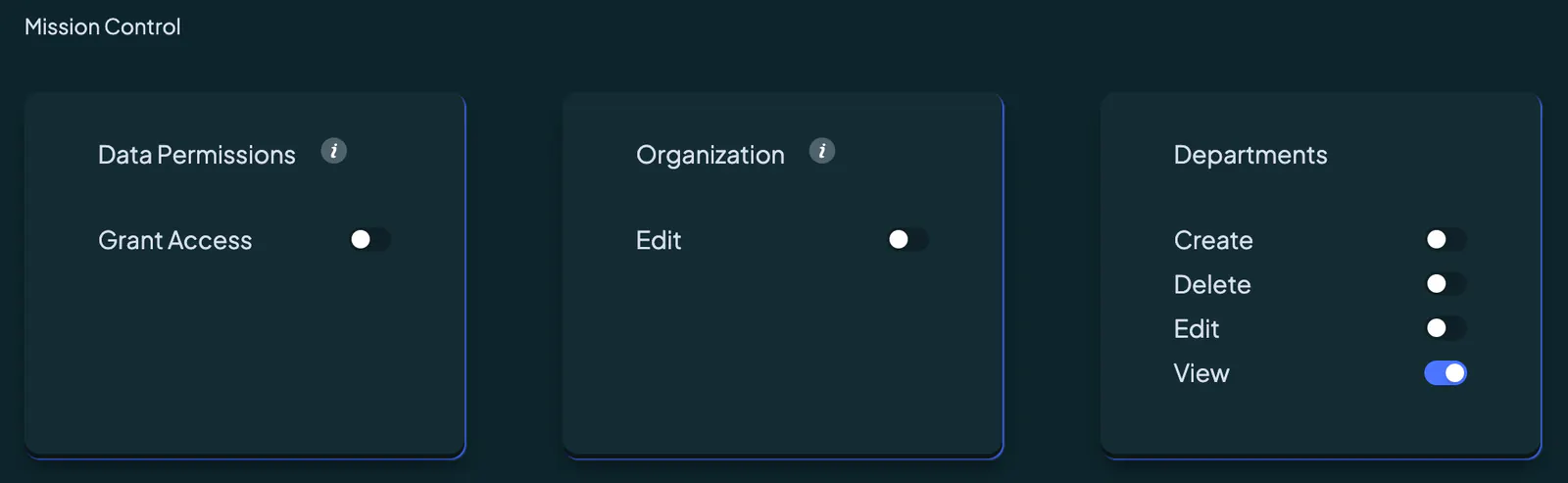
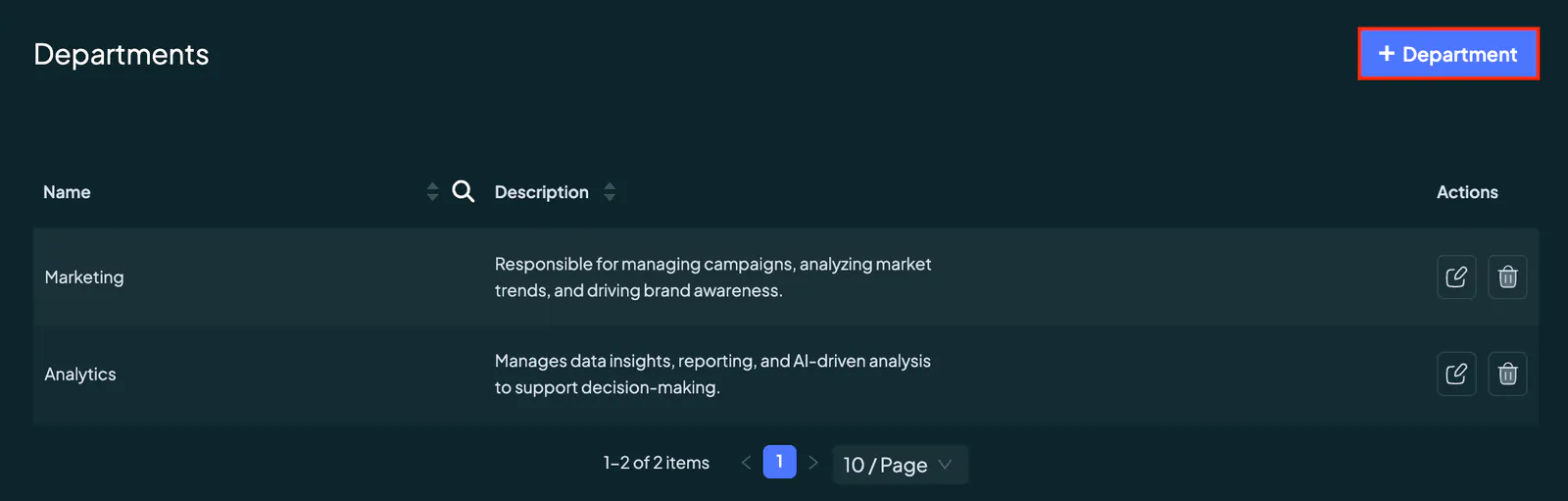
To add a new department, click on the “+ Department” button at the top-right corner of the Departments page. A popup form will appear prompting you to enter a unique department name and provide a description explaining the department's purpose.
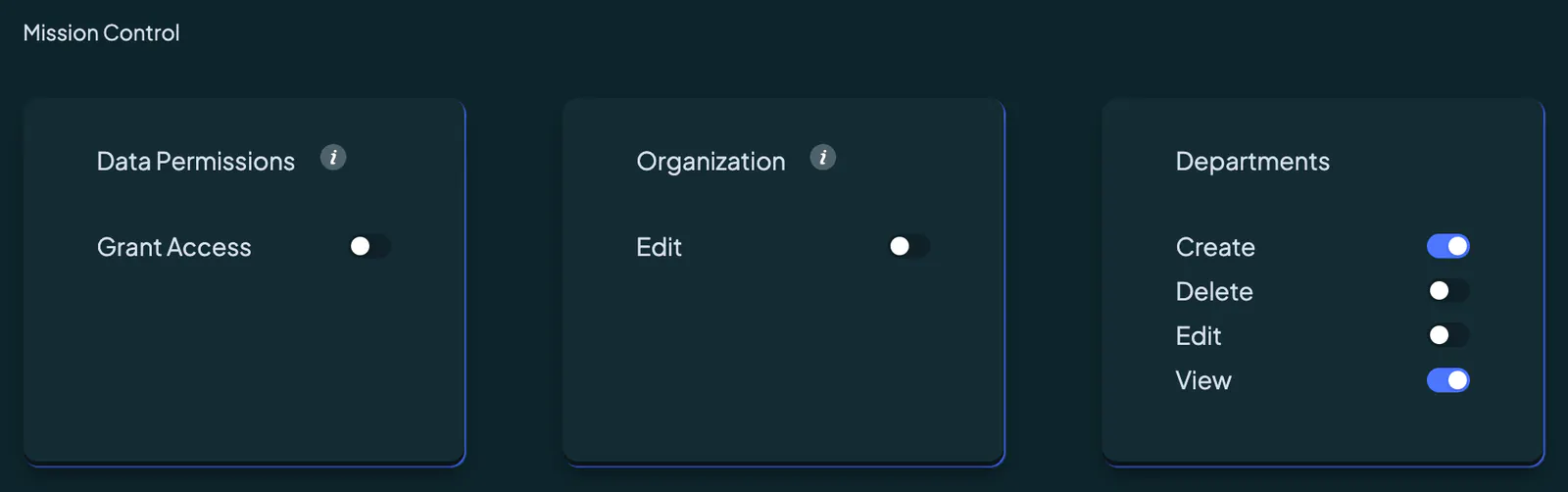
You can add a department only if your role includes the Create Department permission. Refer to our Roles Guide for details on user permissions.
Editing A Department
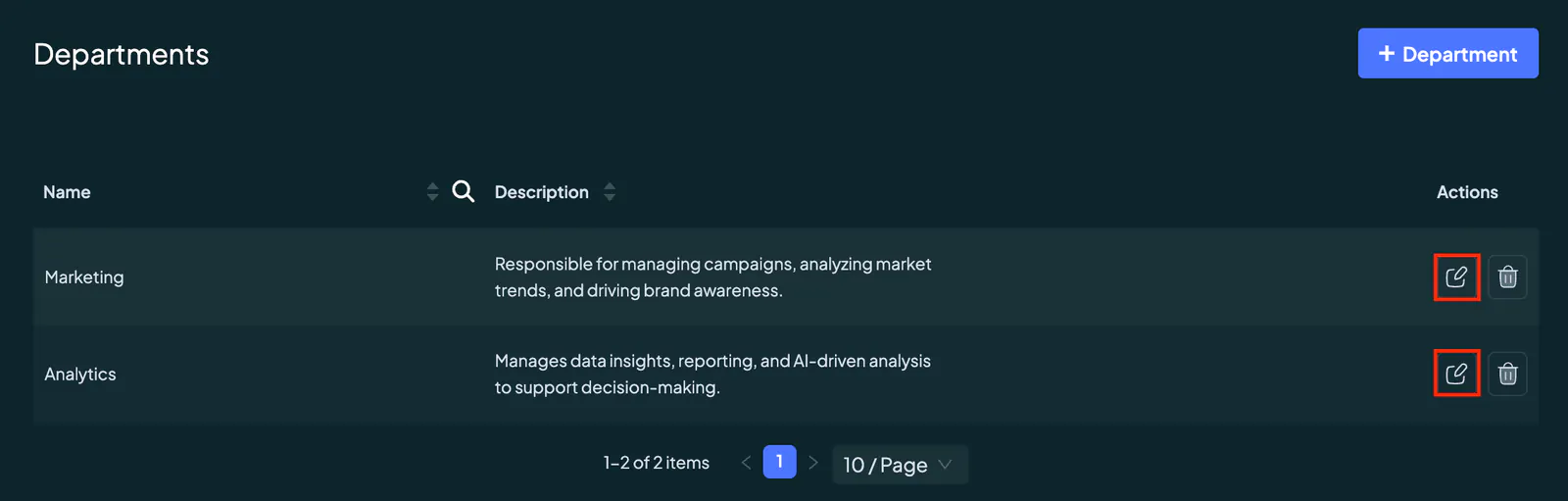
To edit an existing department, click on the edit icon next to the department name in the Actions column. This will open a popup form where you can update the department name or description. Once the changes are made, save them to finalize.
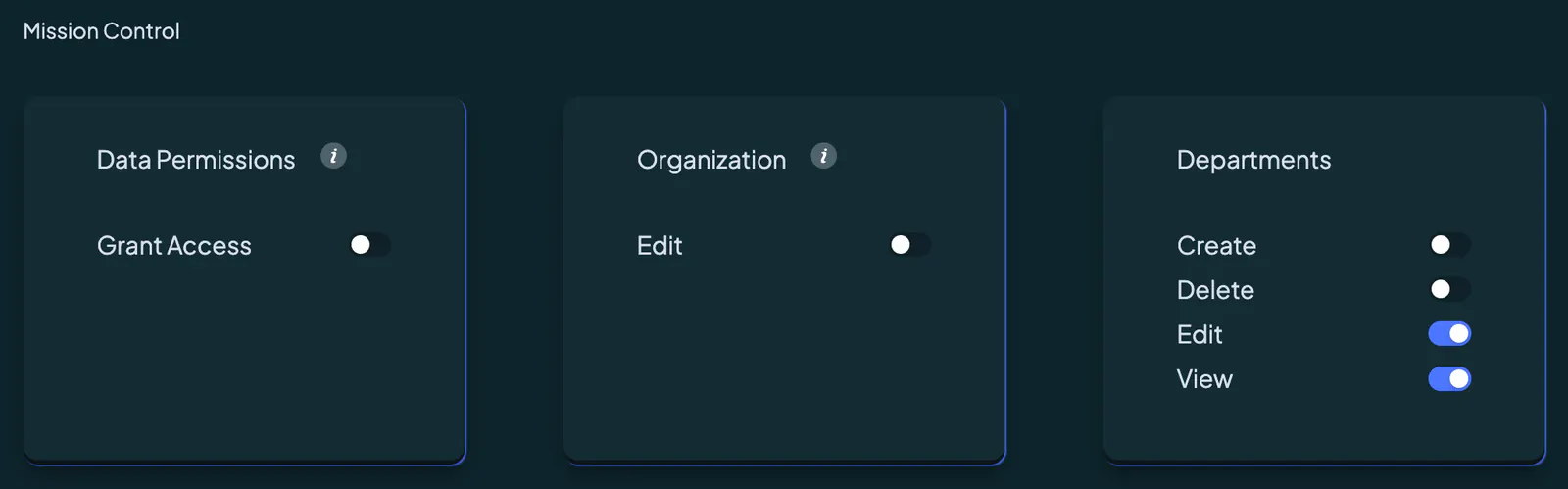
Editing a department requires a role with the Edit Department permission. Refer to our Roles Guide for details on user permissions.
Deleting A Department
To delete a department, click on the trash can icon in the Actions column next to the department name. If the department contains active users, deletion will be restricted until all users are reassigned or removed.
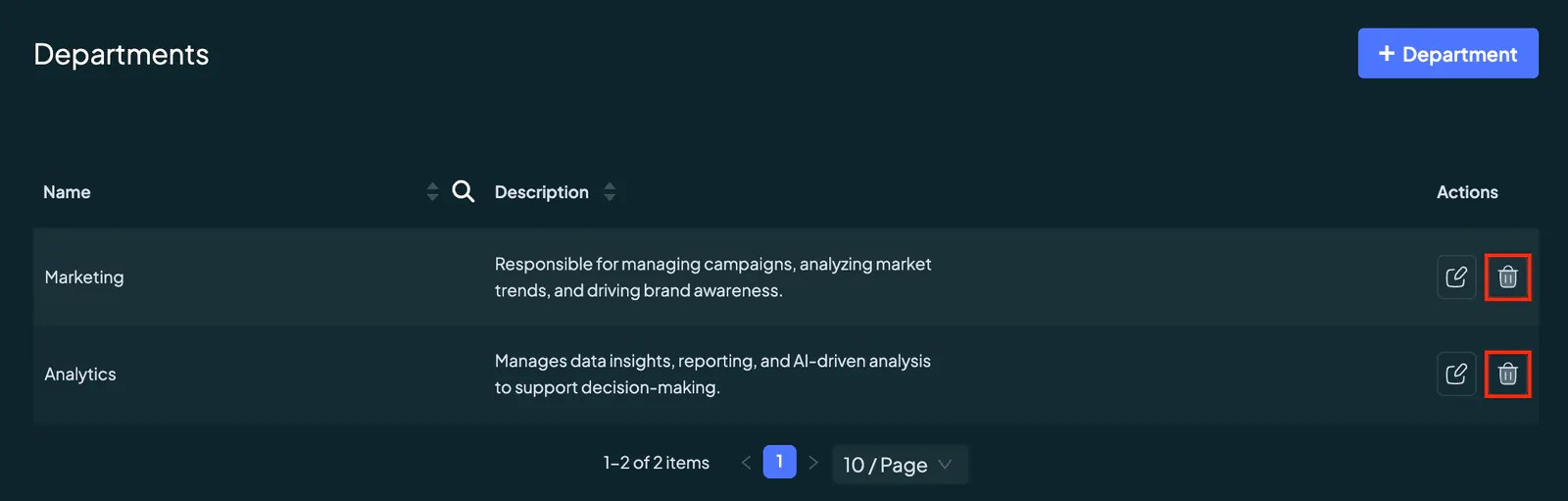
Deleting a department requires a role with the Delete Department permission. Refer to our Roles Guide for details on user permissions.