
Adding A User To Multiple Organizations
On this page
This functionality allows you to add a user to additional organizations while maintaining their existing email and login credentials. The process ensures seamless access for users across organizations while preserving their roles and permissions specific to each organization.
Step 1: Accessing The Users Page
To begin, you must select Hovi Digital Lab as your active organization. Upon logging into Grower, you will see the Select An Organization screen. From this screen, click on Hovi Digital Lab to proceed.
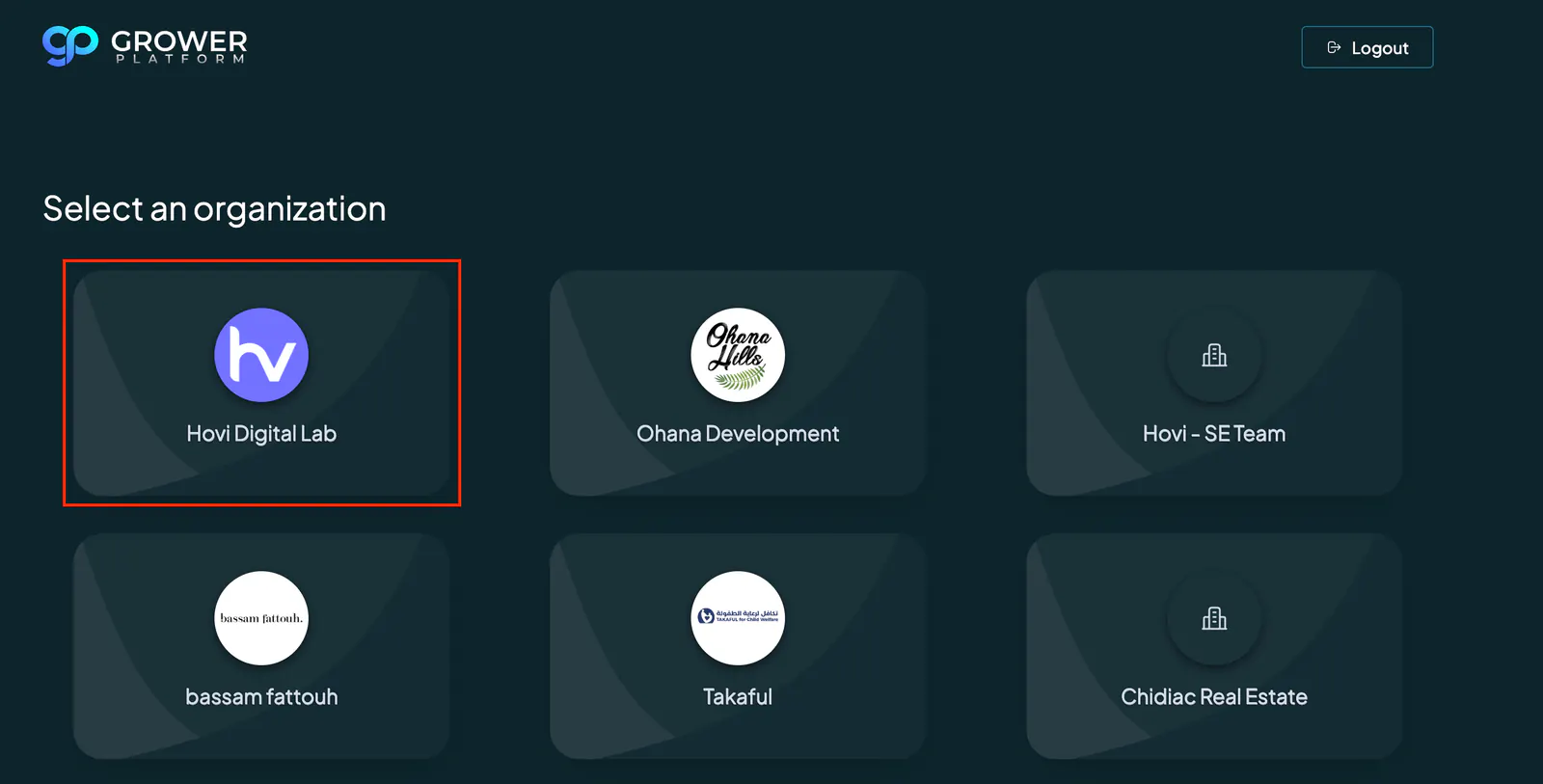
Once you are within Hovi Digital Lab, navigate to the Mission Control tab in the side menu. Expand the User Management section, then select the "Users" tab.
Step 2: Selecting The Organization
Once on the Users page, locate the organization dropdown at the top. This dropdown allows you to select the organization where you want to add the user. In this case, if the user is already part of Organization A and needs to be added to Organization B, select Organization B from the dropdown.
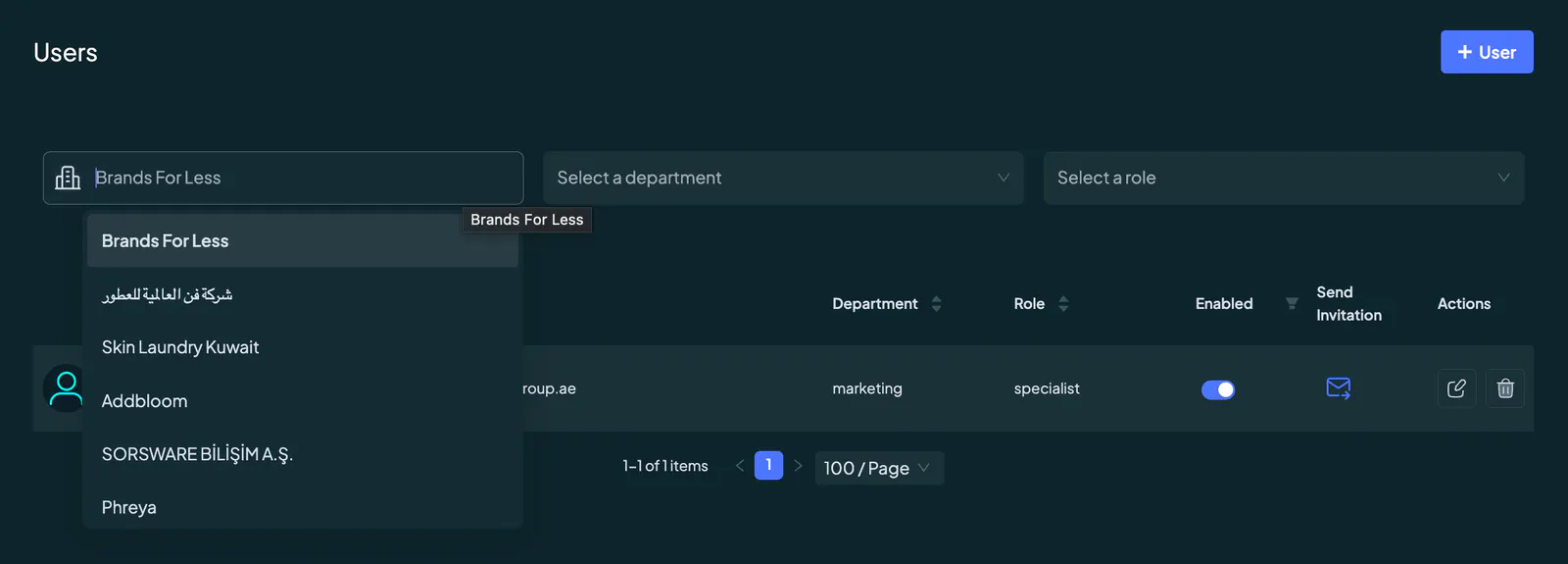
Ensure you’ve selected the correct organization before proceeding, as the action will apply specifically to the organization selected in this step.
Step 3: Adding The User
With the appropriate organization selected, click on the "+ User" button located at the top-right corner of the page. This action will open the Add User popup.
In the popup, enter the following details:
- First Name and Last Name of the user.
- Email Address, which must match the email used in the original organization.
After entering the user's basic details, proceed to assign the user to the relevant department and role within the organization. For example, assign John Doe to the "Marketing" department and the role of "Manager."
Once all details are filled out, click Save. The user will now be successfully added to the new organization while retaining access to their existing organization.
Example Scenario
Let’s take the case of John Doe, who is already a user in Organization A with the email john.doe@email.com. Now, you need to add John Doe to Organization B.
Follow these steps:
- Choose Hovi Digital Lab: Ensure that you are operating within the Hovi Digital Lab organization, as this is only available to internal users with Super Admin permissions.
- Navigate To The Users Page: Go to the Mission Control tab in the side menu, expand the User Management section, and select the Users page.
- Select Organization B: On the Users page, use the organization dropdown at the top of the screen to select Organization B. This ensures that the actions you perform will apply to this specific organization.
- Add John Doe: Click the "+ User" button to open the user creation popup.
- In the First Name and Last Name fields, enter John and Doe, respectively.
- In the Email Address field, enter john.doe@email.com (the same email used in Organization A).
- Assign Department & Role: Choose the appropriate department and role for John Doe in Organization B, such as "Sales" and "Team Lead."
- Save Changes: Once all details have been entered, click the "Save" button.
John Doe will now have access to both Organization A and Organization B, maintaining a unified email and login credential across both.