
Organizations
On this page
This guide covers how to access, view, and switch between organizations, edit organization details, and configure settings to ensure structured and secure operations.
An Organization in Grower represents a company entity that groups all its users, roles, departments, and data into one cohesive structure. Organizations are the foundation for managing access, permissions, and operational data, ensuring that each company can operate independently while maintaining secure and centralized control.
Accessing Organizations
To view and manage organizational details, users must have appropriate permissions assigned to their role. To access the Organizations Page, click on the Mission Control tab in the side menu. From there, expand the User Management section and click on the "Organization" tab. This will redirect you to a page where you can view and edit the details of the Organization that you are currently in.
Viewing Organizations
If you are part of multiple organizations, such as an agency managing multiple clients, Grower allows you to seamlessly switch between them.
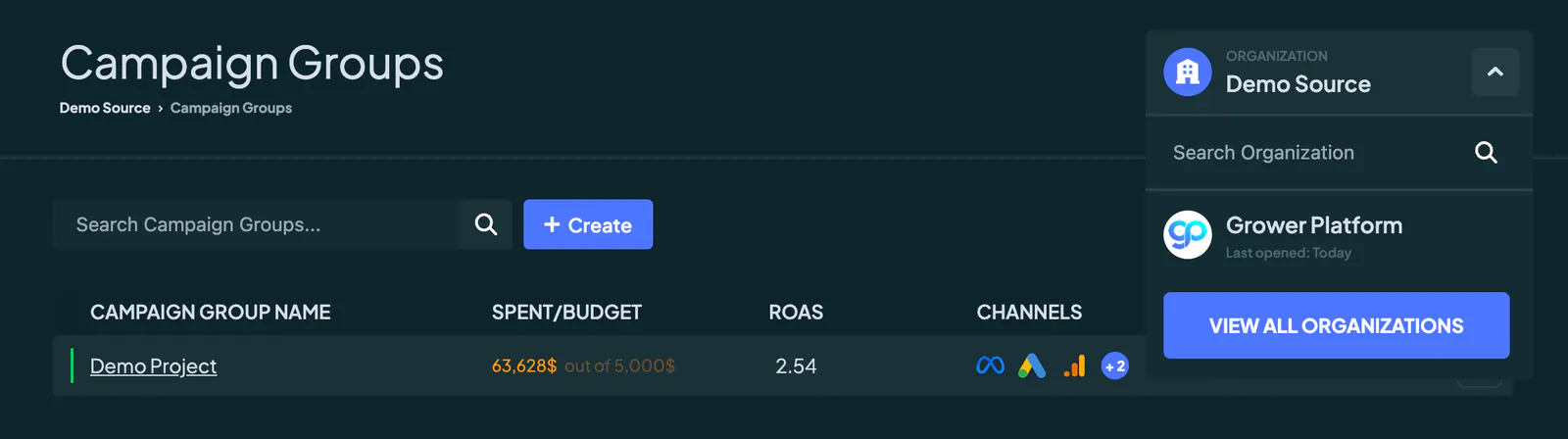
To view the list of organizations you belong to, you can click on the Grower Platform icon in the side menu, where a dropdown will display all the organizations you have access to. You can switch between organizations by selecting the desired one from this list.
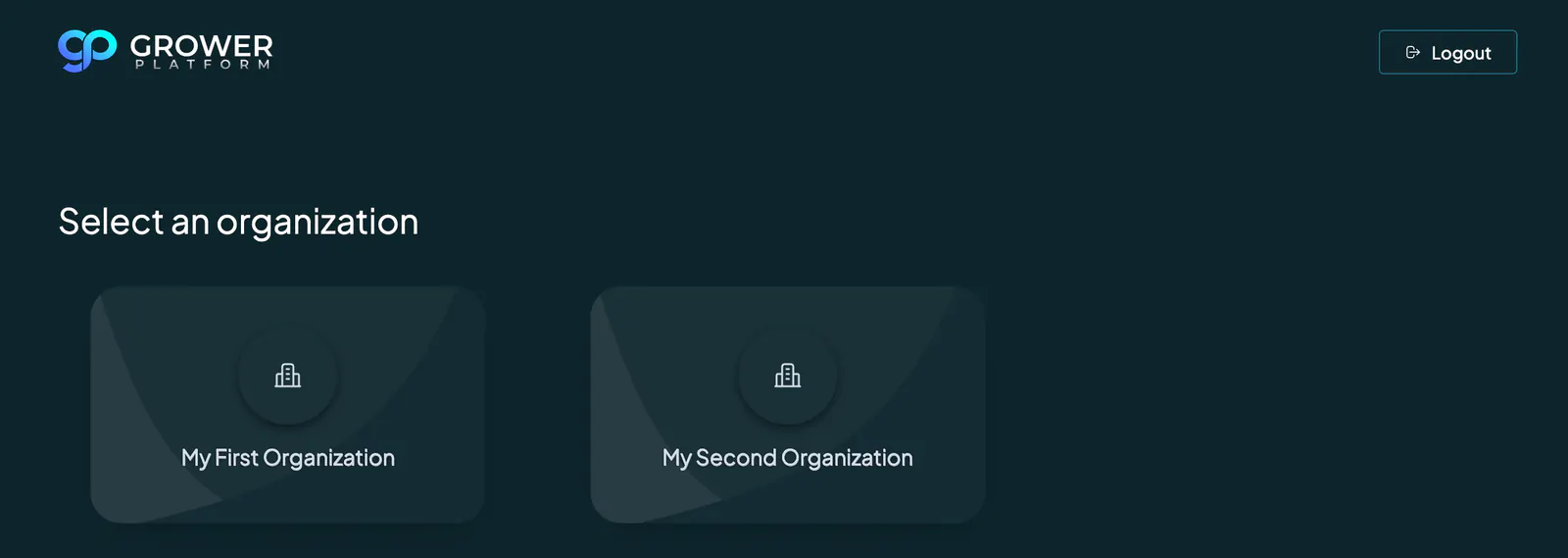
Alternatively, you can use the Organization dropdown that appears on the Campaign Group listing page and within any Campaign Group. This dropdown allows quick switching between organizations, ensuring you are always in the right workspace for the projects you’re managing.
Editing Organizations
Once on the Organizations page, users with the appropriate Edit Organization permission can modify organizational details. Refer to our Roles Guide for details on user permissions.
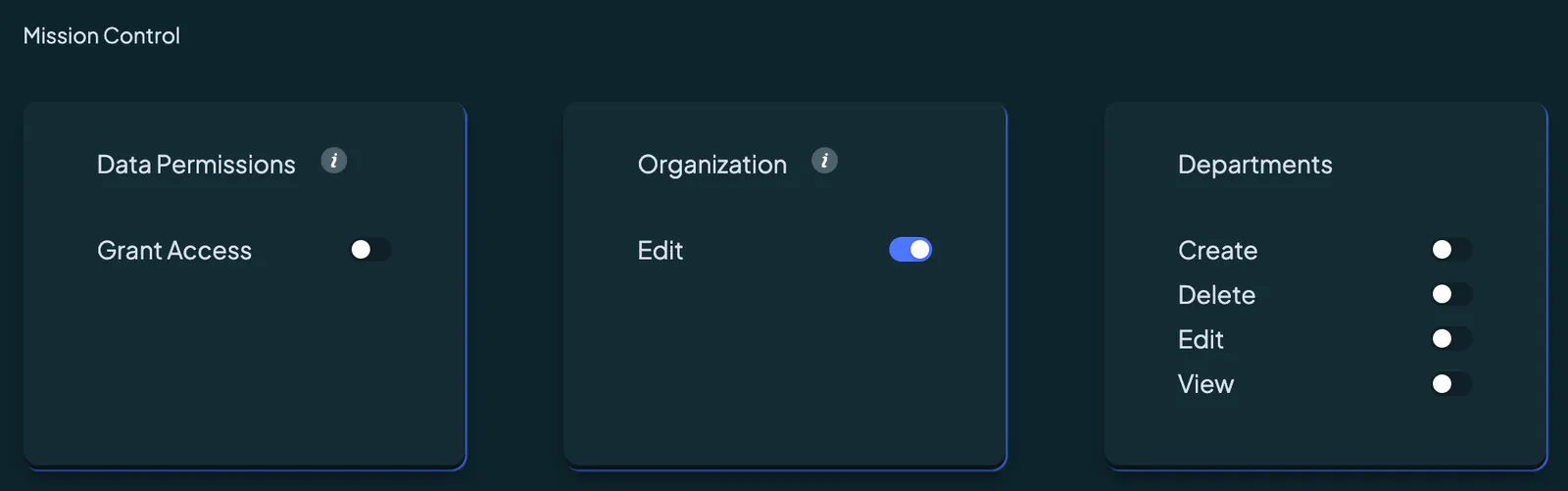
To edit an organization, navigate to the Organizations page via Mission Control. Once on the Organization Settings page, make the necessary changes to fields such as Name, Description, Target Regions, or any other details.
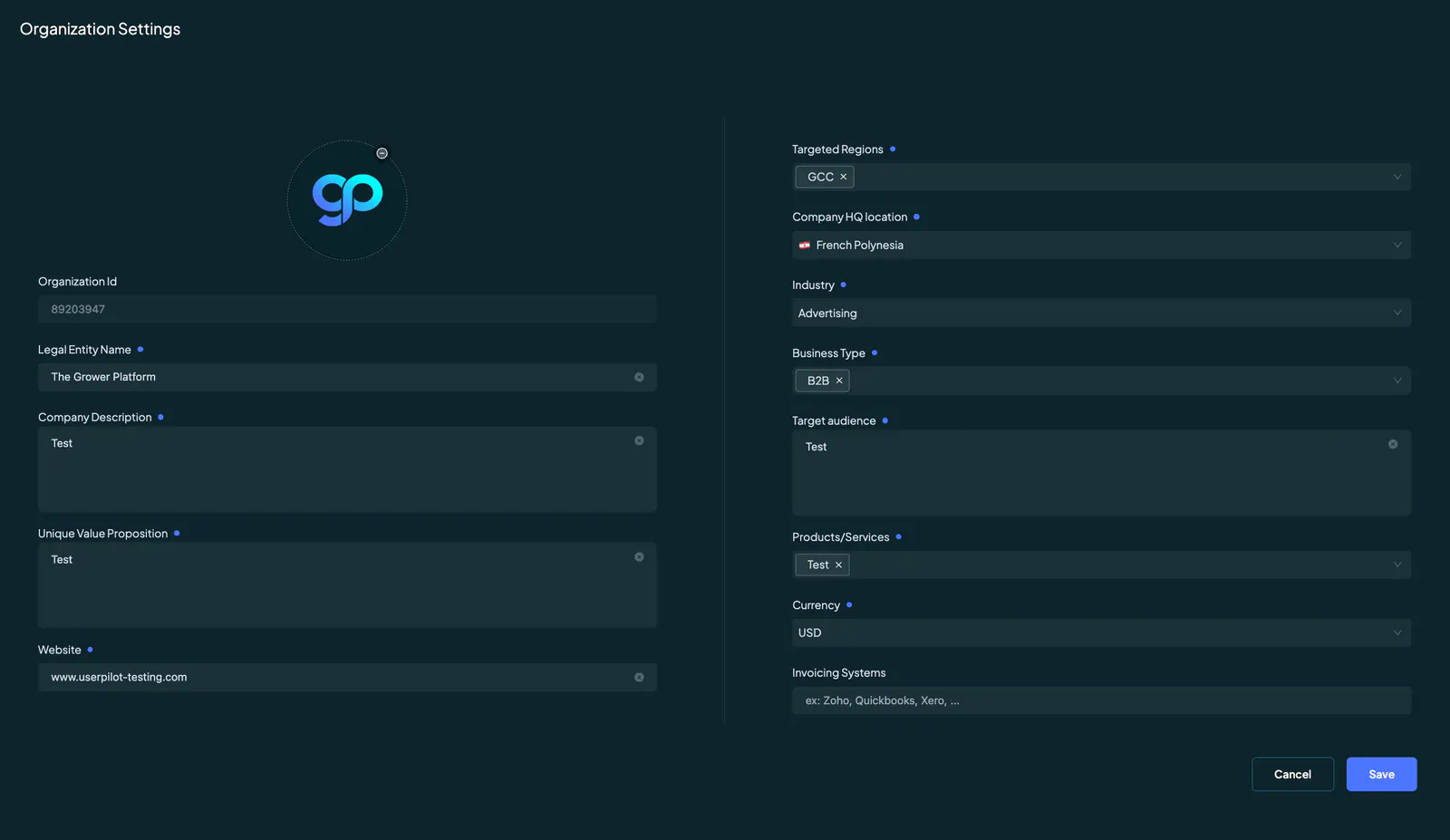
After updating the information, click the "Save" button at the bottom right to apply the changes.