
Managing Organizations
On this page
The Organizations page allows internal users to manage all registered organizations. This page is exclusively available for internal users and cannot be accessed by external users such as clients.
Accessing The Organizations Page
Before accessing the Organizations page, it is essential to select Hovi Digital Lab as your active organization. Upon logging into Grower, you will see the Select An Organization screen. From this screen, click on Hovi Digital Lab to proceed. If you are not in Hovi Digital Lab, the Organizations page and its features will remain unavailable.
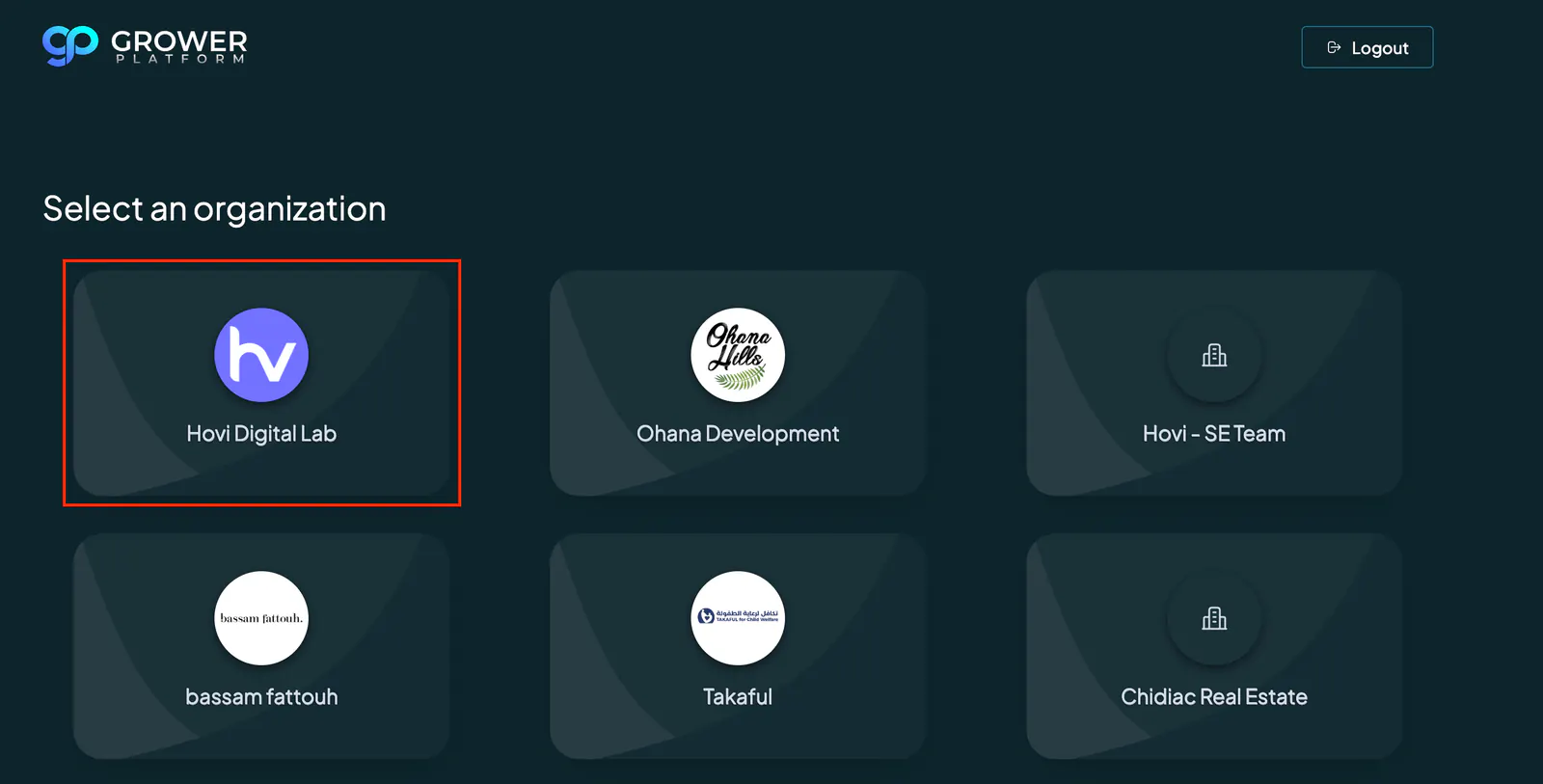
Once you are within Hovi Digital Lab, navigate to the Mission Control tab in the side menu. Expand the System Settings section, then select the "Organizations" tab. This will take you to the Organizations page, where you can view and manage all registered organizations.
Viewing Organizations
The Organizations page provides a complete overview of all organizations in a table.
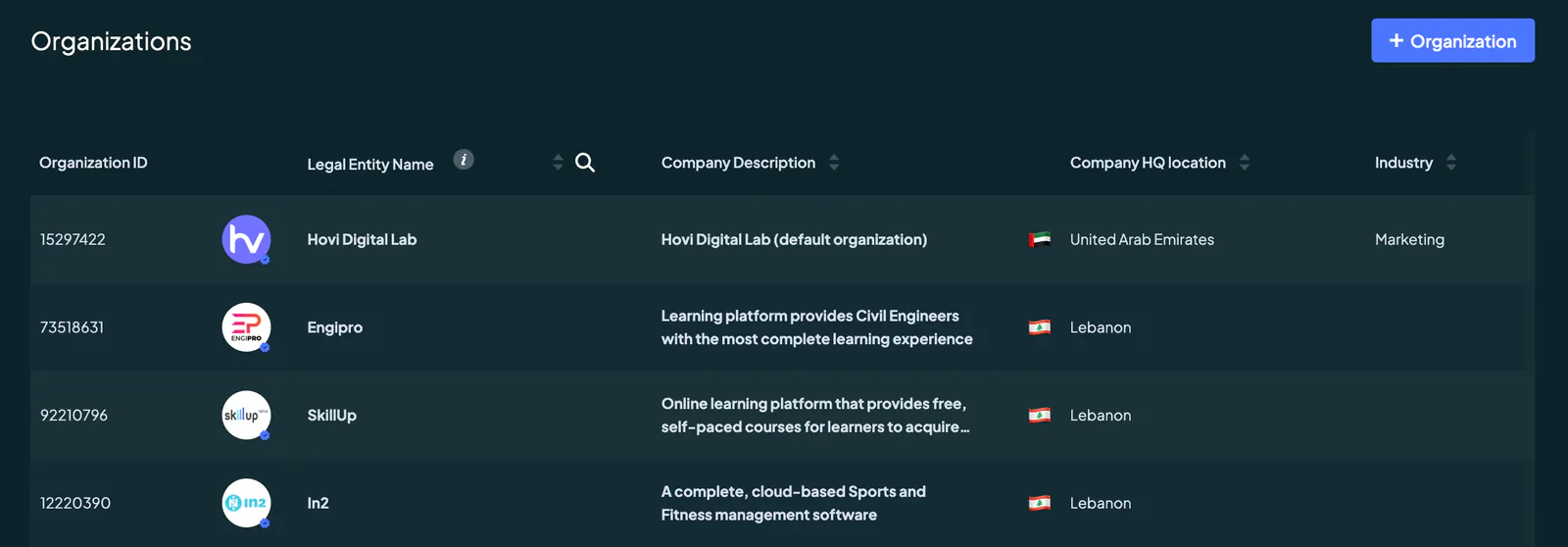
Each organization is displayed with detailed information, including its unique organization ID, legal entity name, company description, headquarters location, industry, business type, target audience, unique value proposition, and products or services offered.

The page is designed to give internal users comprehensive insight and control over organizational data. You can use the search bar or filters at the top of the table to locate specific organizations efficiently.
Adding An Organization
To add a new organization, click the "+ Organization" button in the top-right corner of the page. This opens a form where you can input essential details such as the organization’s name, description, industry, and other relevant information.
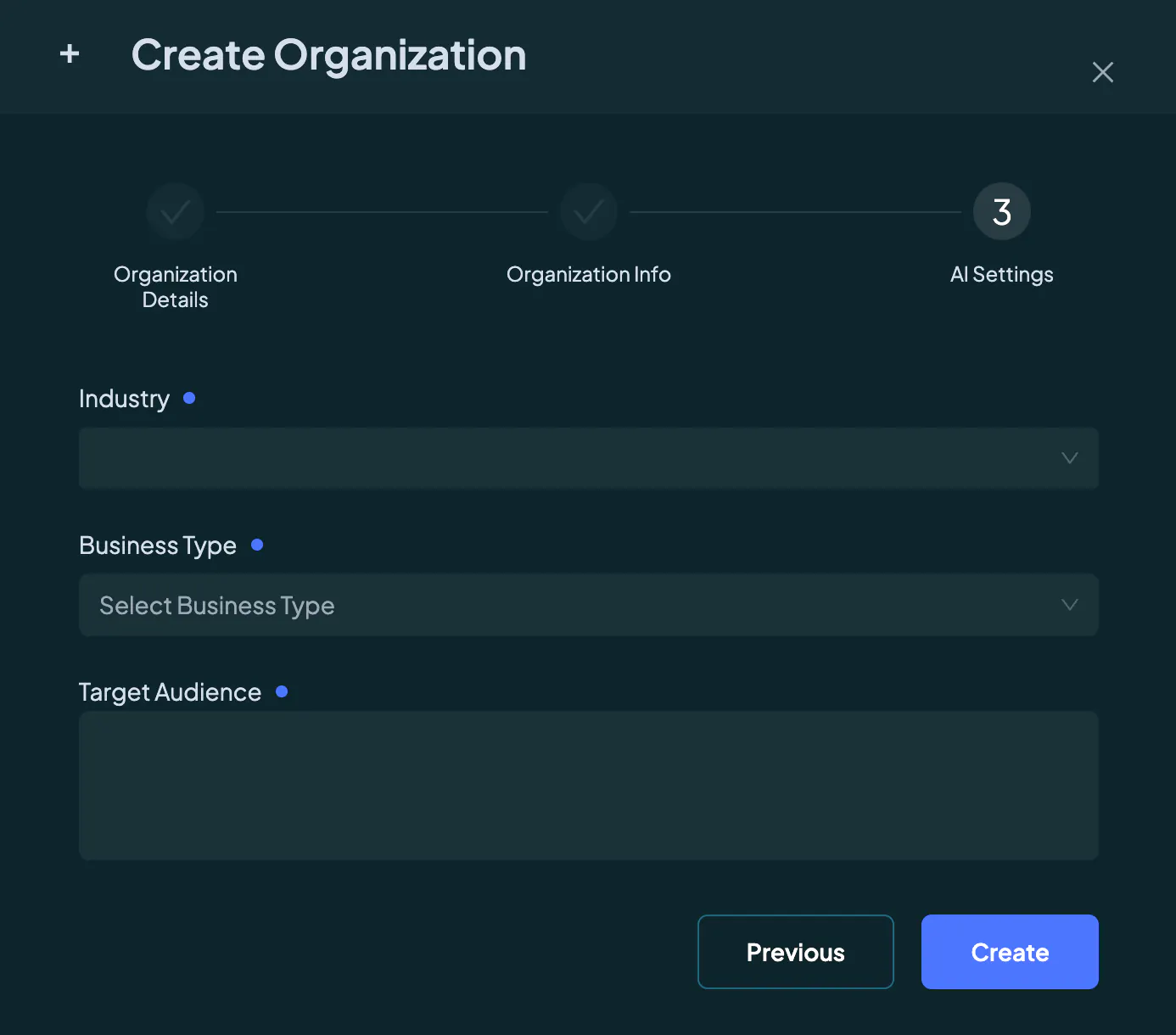
Once completed, click "Create" button to create the new organization.
Editing An Organization
Updating Details
To edit an organization's details, click the edit icon next to the organization’s entry in the table. This allows you to update fields such as the company description, unique value proposition, or product offerings.
Defining Users With Access
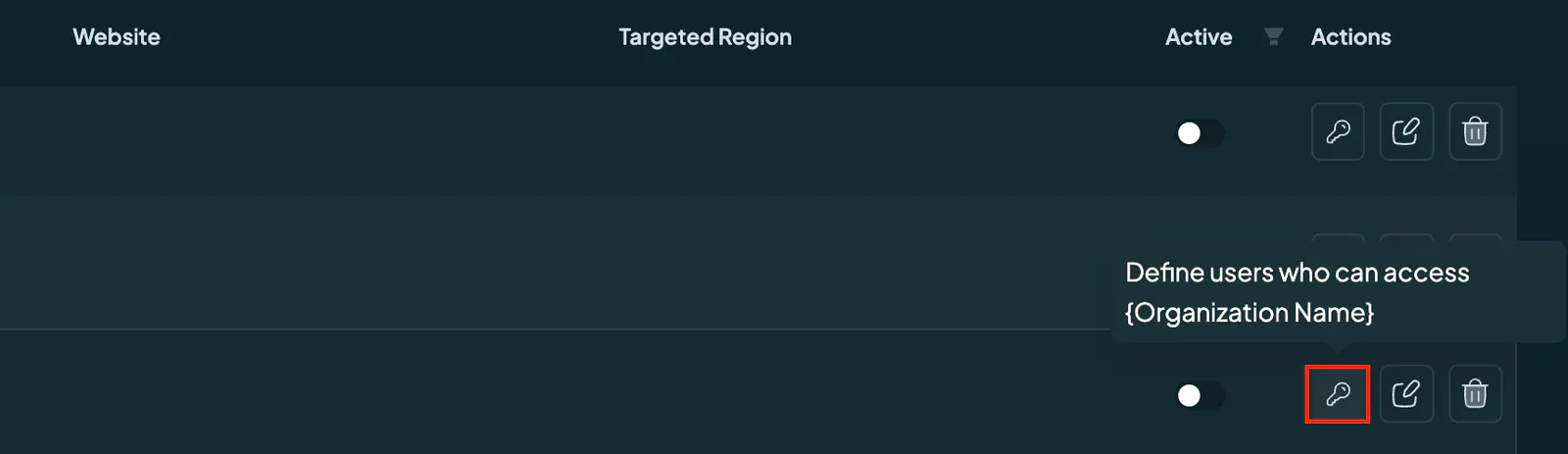
In addition to editing organizational details, you can define which users have access to the organization. This can be managed within the editing interface by selecting users from a dropdown list or assigning roles directly tied to the organization.
Deactivating An Organization
If an organization is no longer active, you can deactivate it using the toggle switch under the "Active" column. Deactivated organizations will no longer appear in active views but remain in the system for historical or reporting purposes.
Deleting An Organization
Organizations that are no longer required can be permanently deleted. Click the trash icon next to the organization’s entry to remove it.
Note that deleting an organization is irreversible and should be done with caution to avoid unintended data loss.