Create Your First Budget
On this page
This guide explains creating and managing Campaign Group Budgets for financial alignment. It covers setting budgets for different timeframes (monthly, quarterly, yearly), allocating funds, and tracking progress in the Budgets page or Summary tab. You’ll also learn how to edit and adjust budgets to optimize financial planning.
A Campaign Group Budget refers to the allocated funds or financial plan designated for a specific Campaign Group within an organization. This guide will walk you through creating, managing, and editing budgets to ensure your campaigns stay financially aligned with your objectives.
Creating A Budget
To view or manage data, you must first select a fiscal year. By default, the current fiscal year is displayed, but Grower offers flexibility to set budgets for up to three years in the past and three years into the future. If a budget is allocated for a specific year, a checkmark will appear next to that year in the dropdown menu, helping you quickly identify years with assigned budgets.
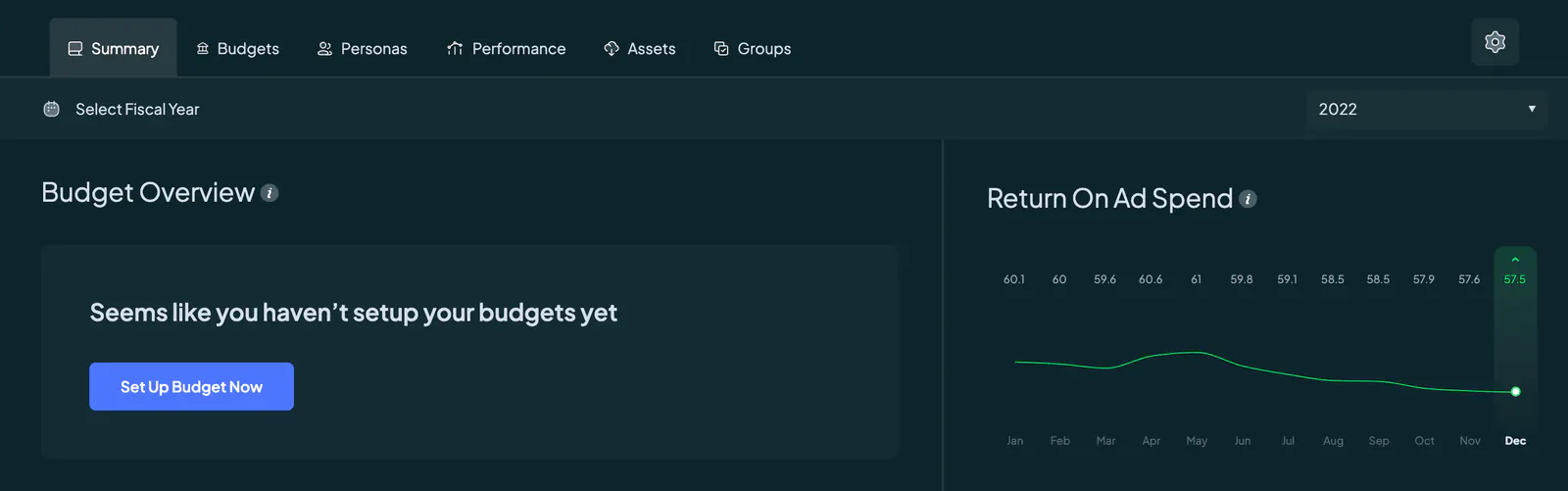
When no budget has been set for the selected fiscal year, the Summary page shows a "Set Up Budget Now" button, directing you to the budget setup process for quick allocation and tracking.
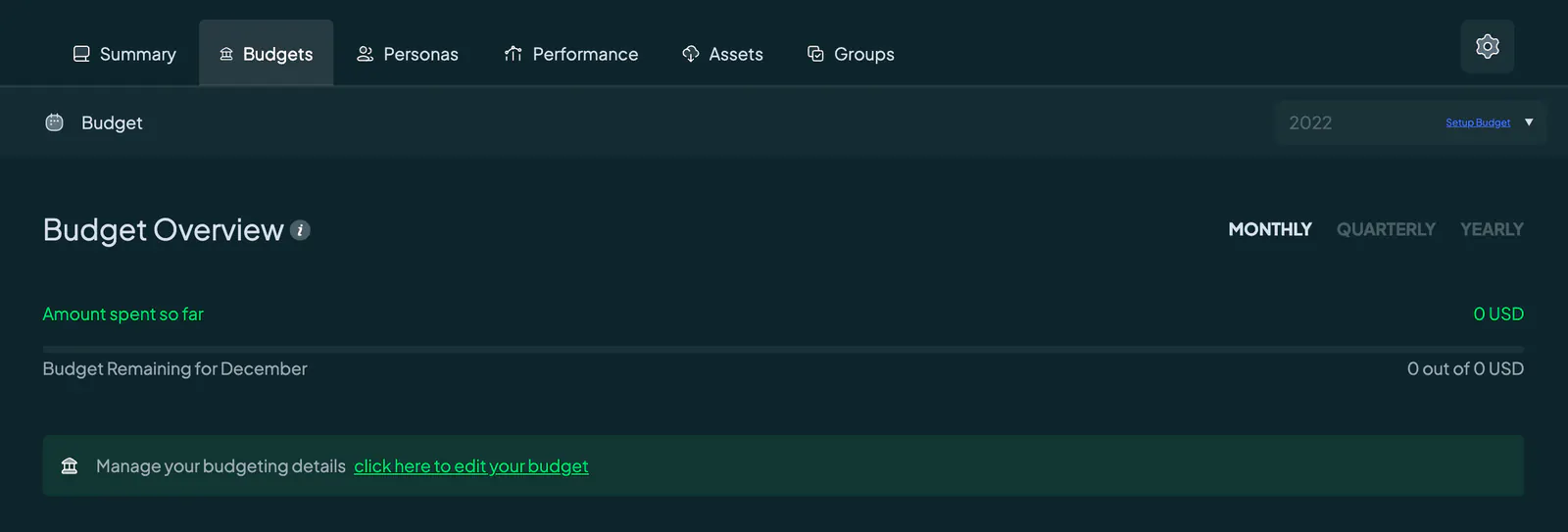
On the Budgets page, if no budget is assigned, you'll see options for Monthly, Quarterly, and Yearly recurrences. A message at the bottom prompts you to "click here to edit your budget." Clicking it opens the budget setup interface, where you can allocate and manage your budgets efficiently.
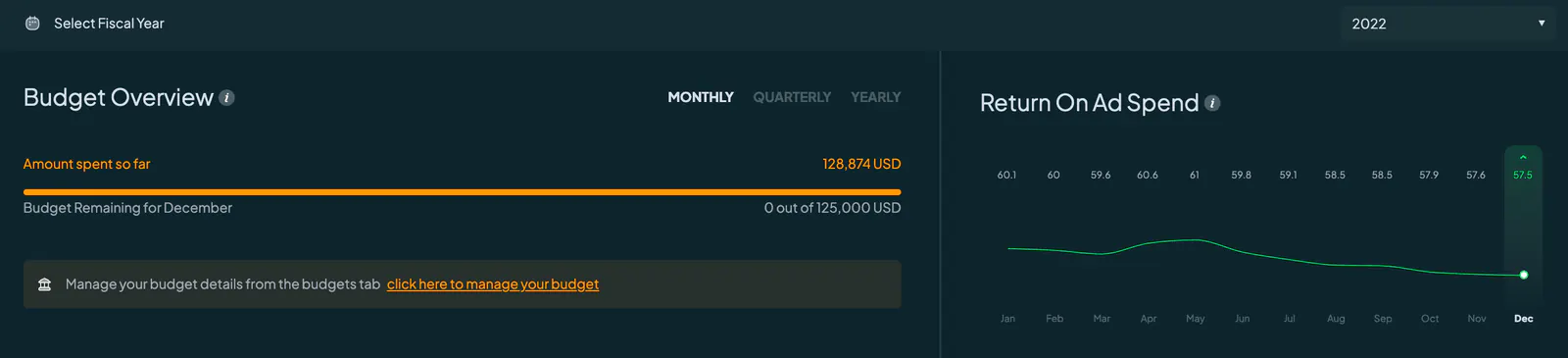
 Once a budget is in place, additional tabs for Monthly, Quarterly, and Yearly views will appear. If no budget is allocated, these tabs will remain hidden. Regardless of the tab you select, you'll see a message prompting you to manage your budget details via the "Budgets" tab. Clicking this message takes you directly to the Budgets page, where you can modify your allocations if necessary.
When you click "click here to edit your budget" a "Manage Your Budget" popup appears. This popup contains two dropdown menus: Year and Budget Recurrence.
The Year dropdown will initially display the current fiscal year (for example, if it's 2024, you'll see the months and quarters of 2024). You can choose a different year from this dropdown if needed.
The Budget Recurrence dropdown offers Monthly, Quarterly, and Yearly options. By default, the Monthly option is selected, but you can switch to Quarterly or Yearly to fit your planning needs.
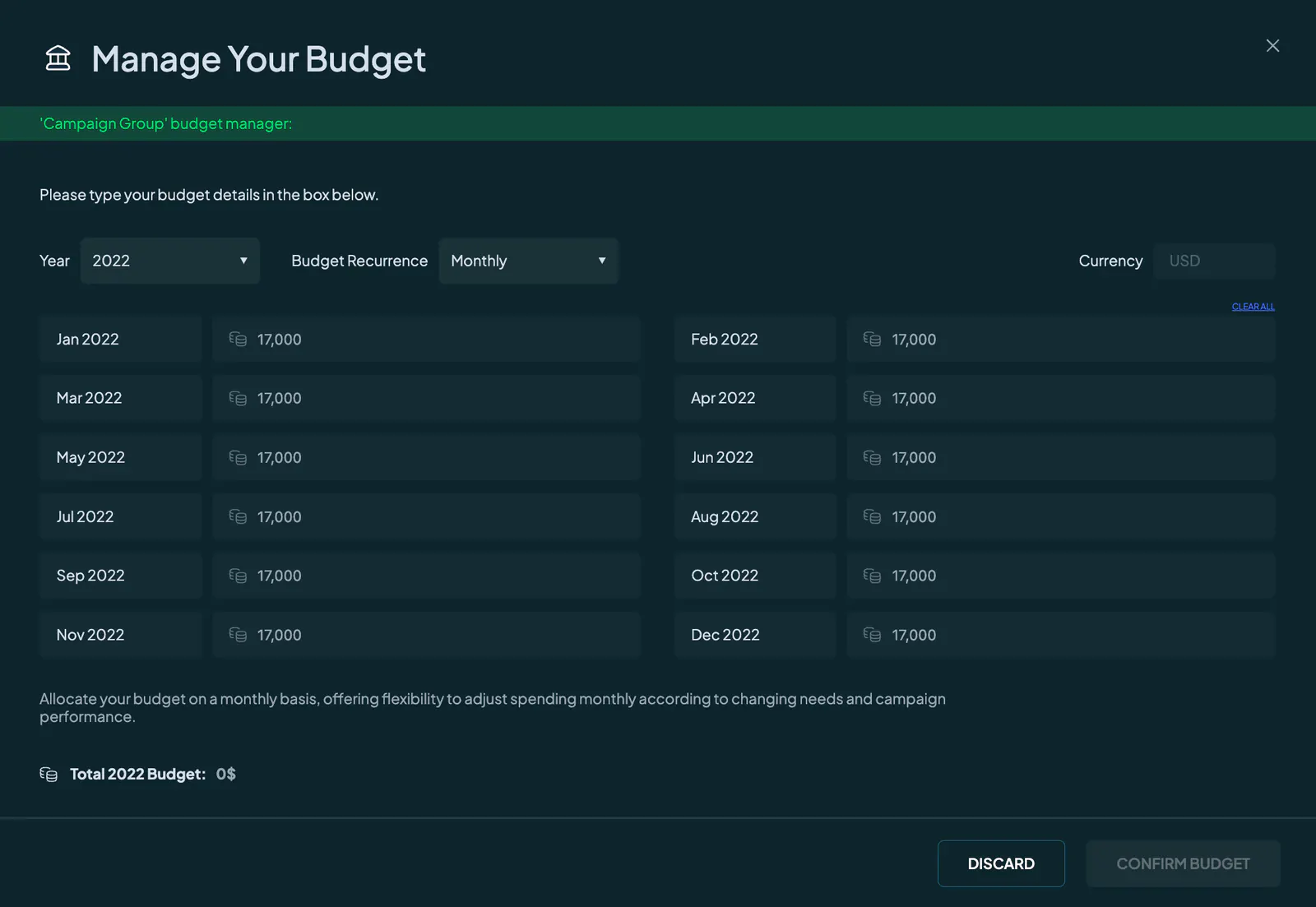
To finalize your budget setup, simply press the "Confirm Budget" button at the bottom right corner.
Budget Recurrence
By default, Monthly Recurrence is selected. To adjust the Budget Recurrence, navigate to the "Budgets" page. At the bottom, you'll find the message: “Manage your budget details from the budgets tab click here to manage your budget.” Clicking this will open the "Manage Your Budget" popup, where you can select the desired Year and Budget Recurrence from dropdowns. The recurrence options include Monthly, Quarterly, and Yearly, each tailored to fit your planning needs.
Monthly Budget Recurrence
When you choose Monthly, a table with 12 text fields (one for each month of the selected year) will appear. You can assign a unique budget to each month or apply the same budget across all months by filling in one month’s budget and clicking "Apply To All?".
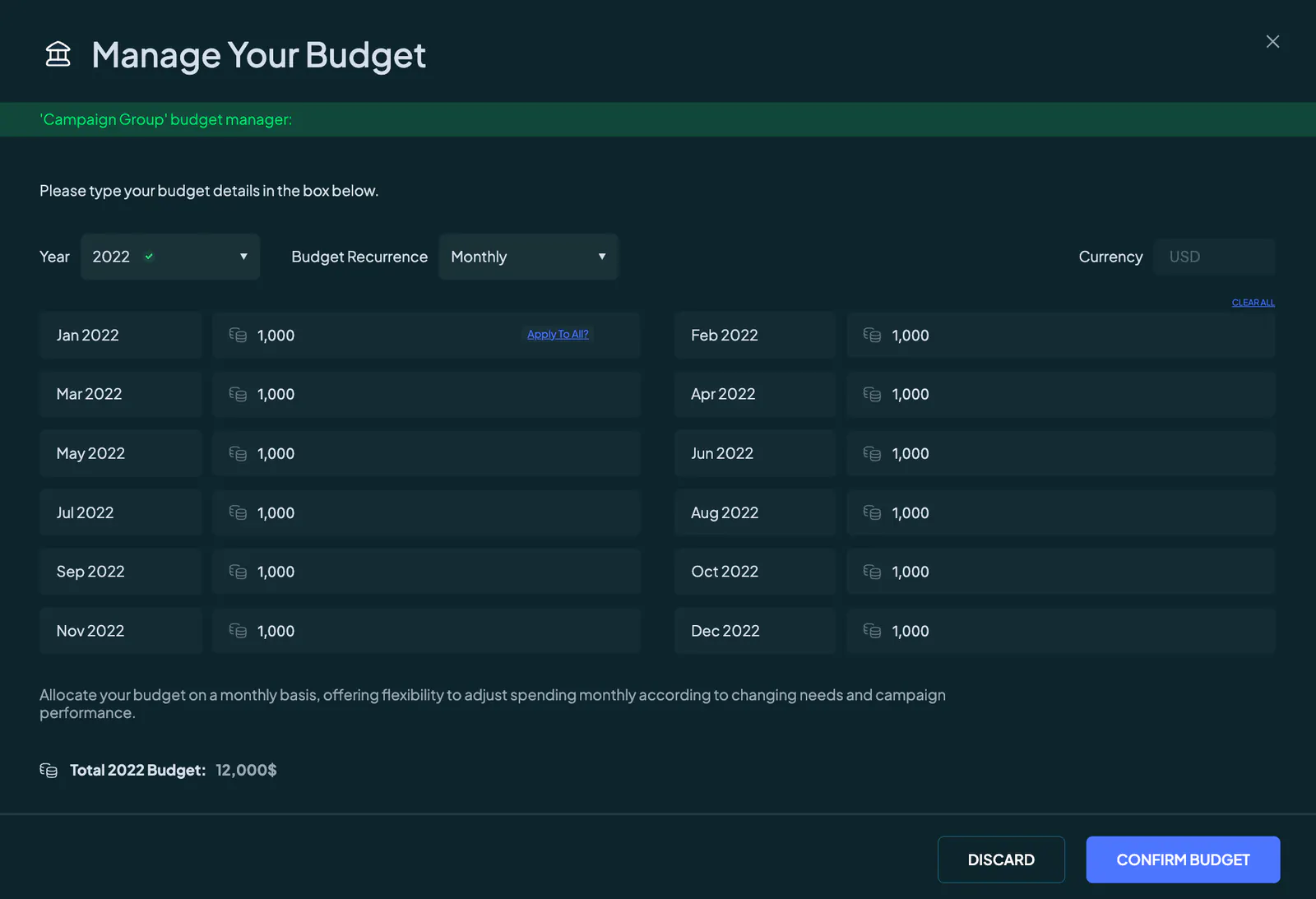
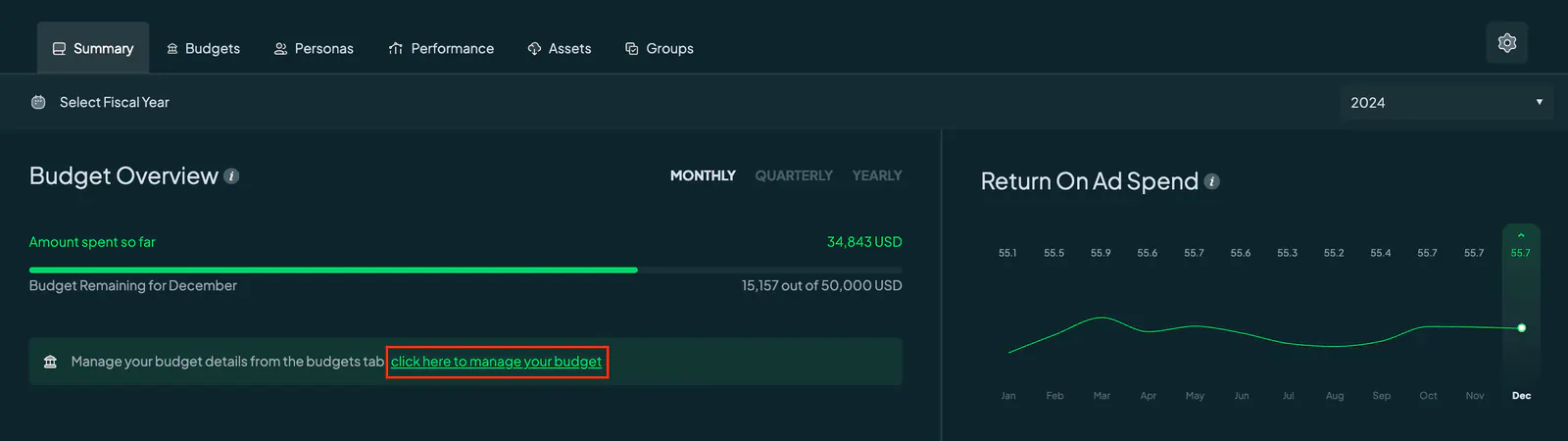
Once you confirm your budget and navigate to the “Summary” tab, you'll find the budget overview displayed according to your selected recurrence frequency. If you chose a monthly budget recurrence, the budget overview will display your budget progress of the current month we’re in of the selected fiscal year.

To provide you with the quarterly view of your budget, we will simply display to you the sum of the 3 months within the quarter. So for Q1, it would be the sum of January, February and March. For Q2, it would be the sum of April, May and June. For Q3, it would be the sum of July, August and September. And for Q4, it would be the sum of October, November and December.
The same logic applies for the yearly recurrence, it would be the sum of the budgets of all 12 months within this fiscal year.
Quarterly Budget Recurrence
If you select Quarterly, the table will have 4 fields corresponding to the four quarters of the selected year. You can allocate a specific budget to each quarter or apply the same budget across all quarters.
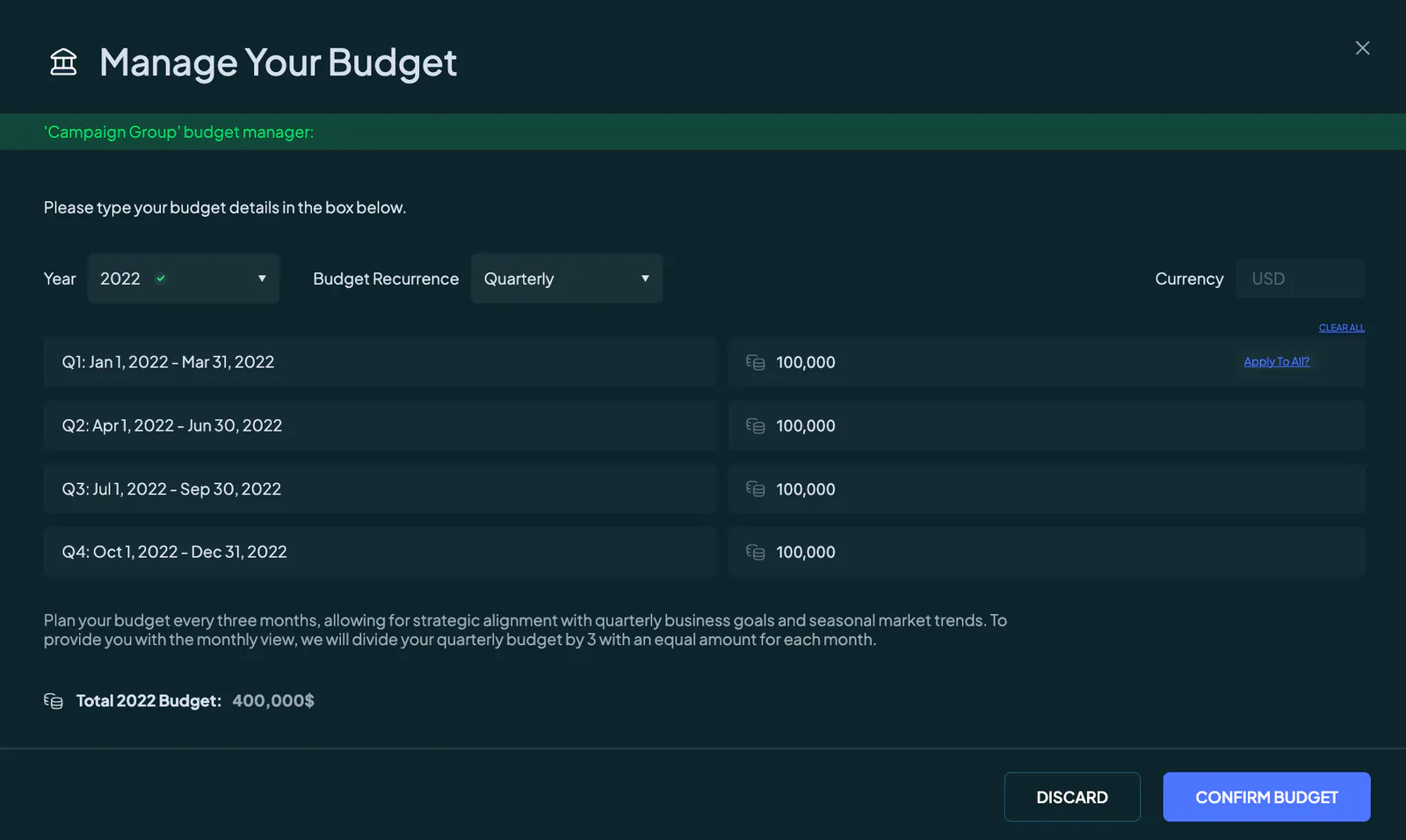
If you've selected a quarterly budget recurrence, the budget overview will provide insight into your budget progress for the current quarter of the chosen fiscal year.

To provide you with the monthly view of spent vs actual budget, we will divide your quarterly budget by 3 with an equal amount for each month.
Yearly Budget Recurrence
When Yearly is chosen, one text field for the entire year’s budget appears. After setting the annual budget, it will automatically be divided into monthly and quarterly allocations for detailed tracking.
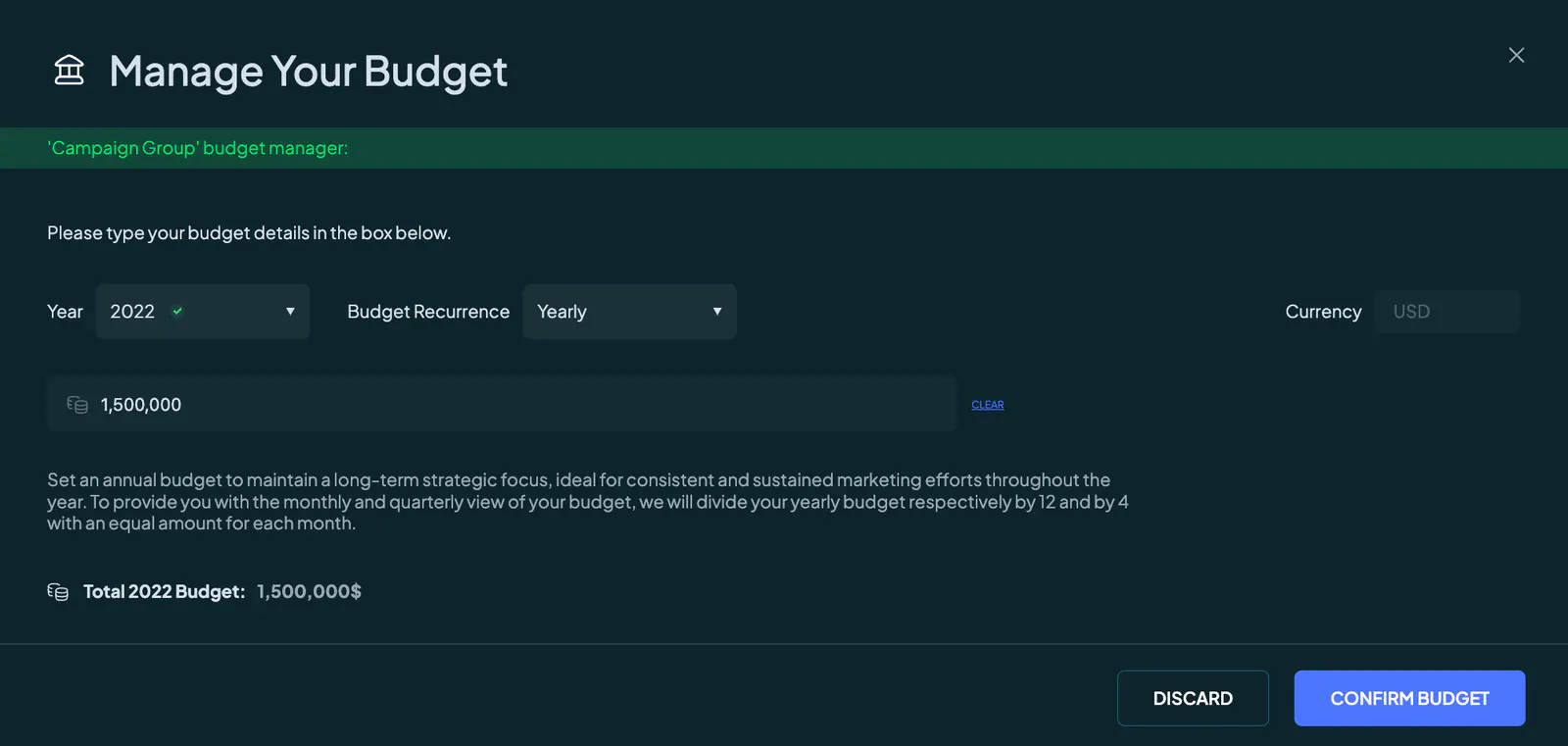
If you've selected a yearly budget recurrence, the budget overview will provide insight into your budget progress for the chosen fiscal year.

To provide you with the monthly and quarterly view of your budget, we will divide your yearly budget respectively by 12 and by 4 with an equal amount for each month.
Editing A Budget
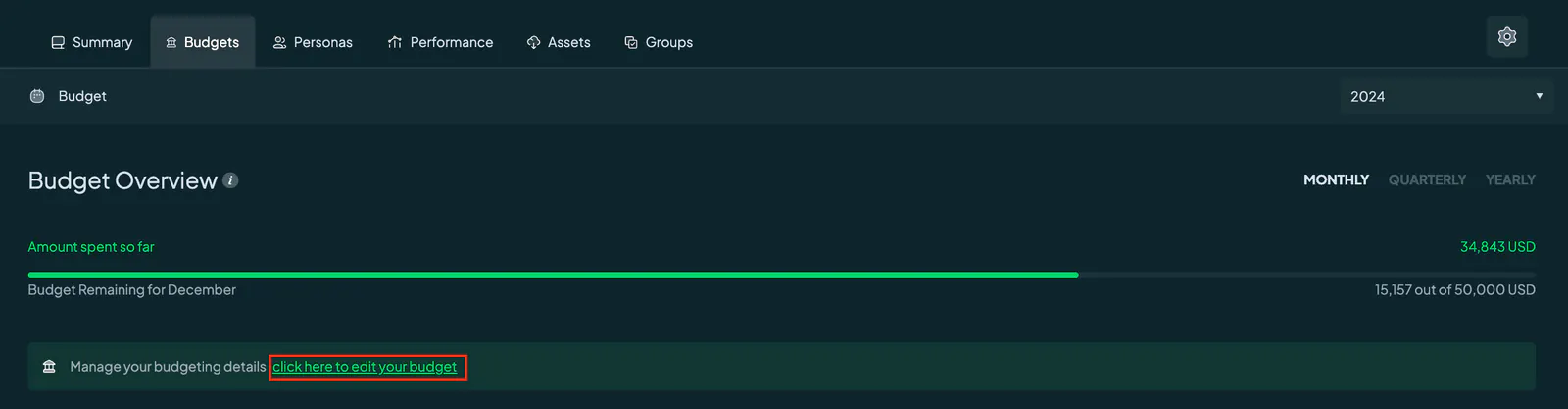
You can modify your budget in two ways. From the Summary tab, click the underlined section in the message: “Manage your budget details from the budgets tab click here to manage your budget.” This will redirect you to the Budgets page.
Alternatively, you can navigate directly to the Budgets page and click the underlined “Manage your budgeting details click here to edit your budget.” Doing so opens the "Manage Your" Budget popup, allowing you to adjust the year, recurrence, and allocation details.