
Top Metrics To Track
On this page
The Top Metrics To Track functionality in Grower allows users to configure and manage the metrics associated with each Group objective. This feature ensures that each objective is tracked using appropriate metrics.
Accessing The Groups Page
Before accessing the Top Metrics To Track page, it is essential to select Hovi Digital Lab as your active organization. Upon logging into Grower, you will see the Select An Organization screen. From this screen, click on Hovi Digital Lab to proceed. If you are not in Hovi Digital Lab, the Top Metrics To Track page and its features will remain unavailable.
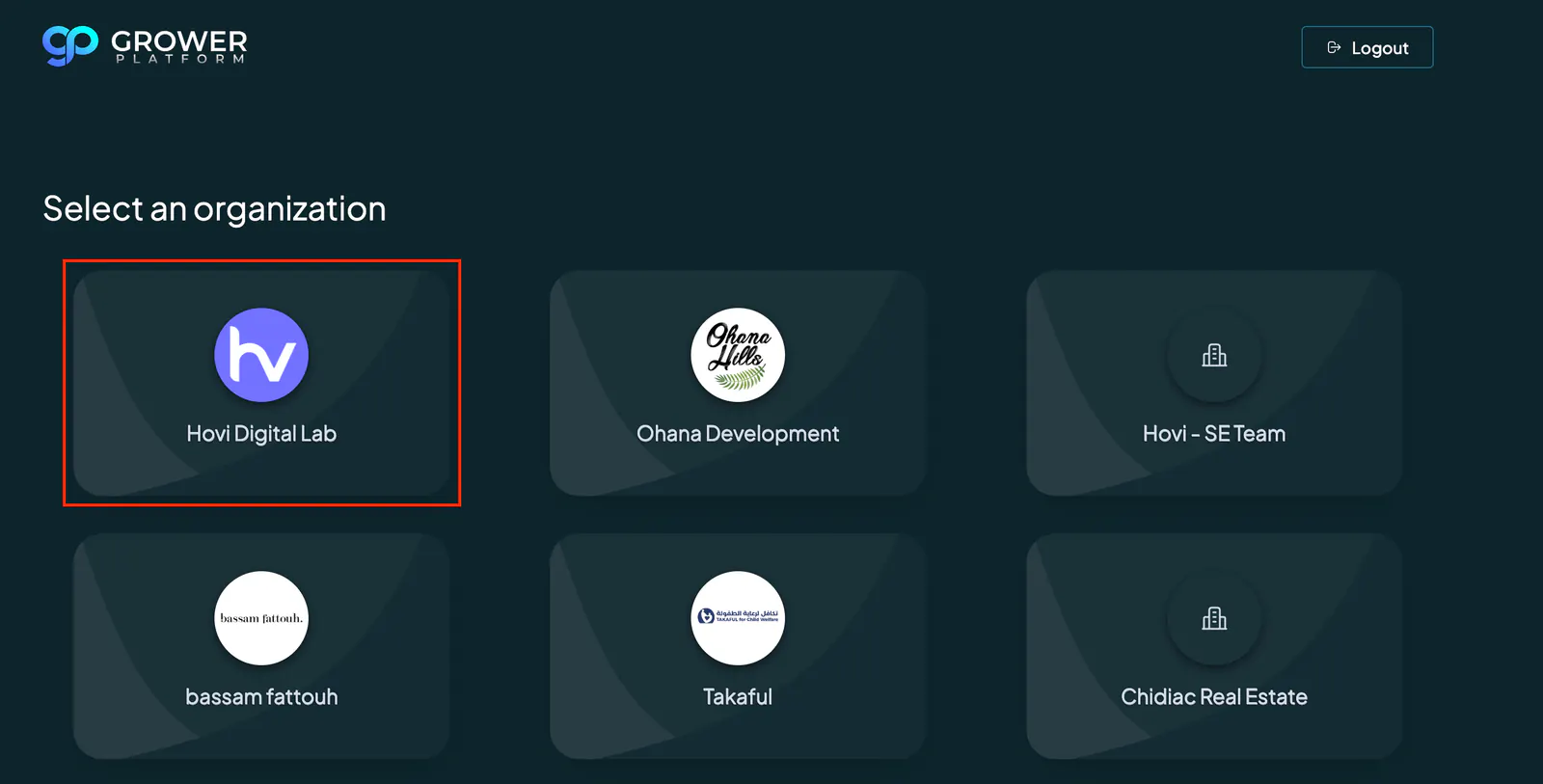
Once you are within Hovi Digital Lab, navigate to the Mission Control tab in the side menu. Expand the System Settings section, then select the "Group Settings" tab. This will open the Top Metrics To Track page, where you can view, update, or create the top metrics of a group.
Viewing Top Metrics To Track
The Top Metrics To Track page provides a table that lists all Primary Objectives along with their top three associated metrics.
Each objective includes metrics pre-configured by the Grower Admin. For example, the "Conversions" objective tracks Success Metrics (representing conversions), Cost Per Acquisition, and Click Through Rate. Similarly, "Brand Awareness" objectives are associated with metrics like Impressions, Reach, and Click Through Rate.
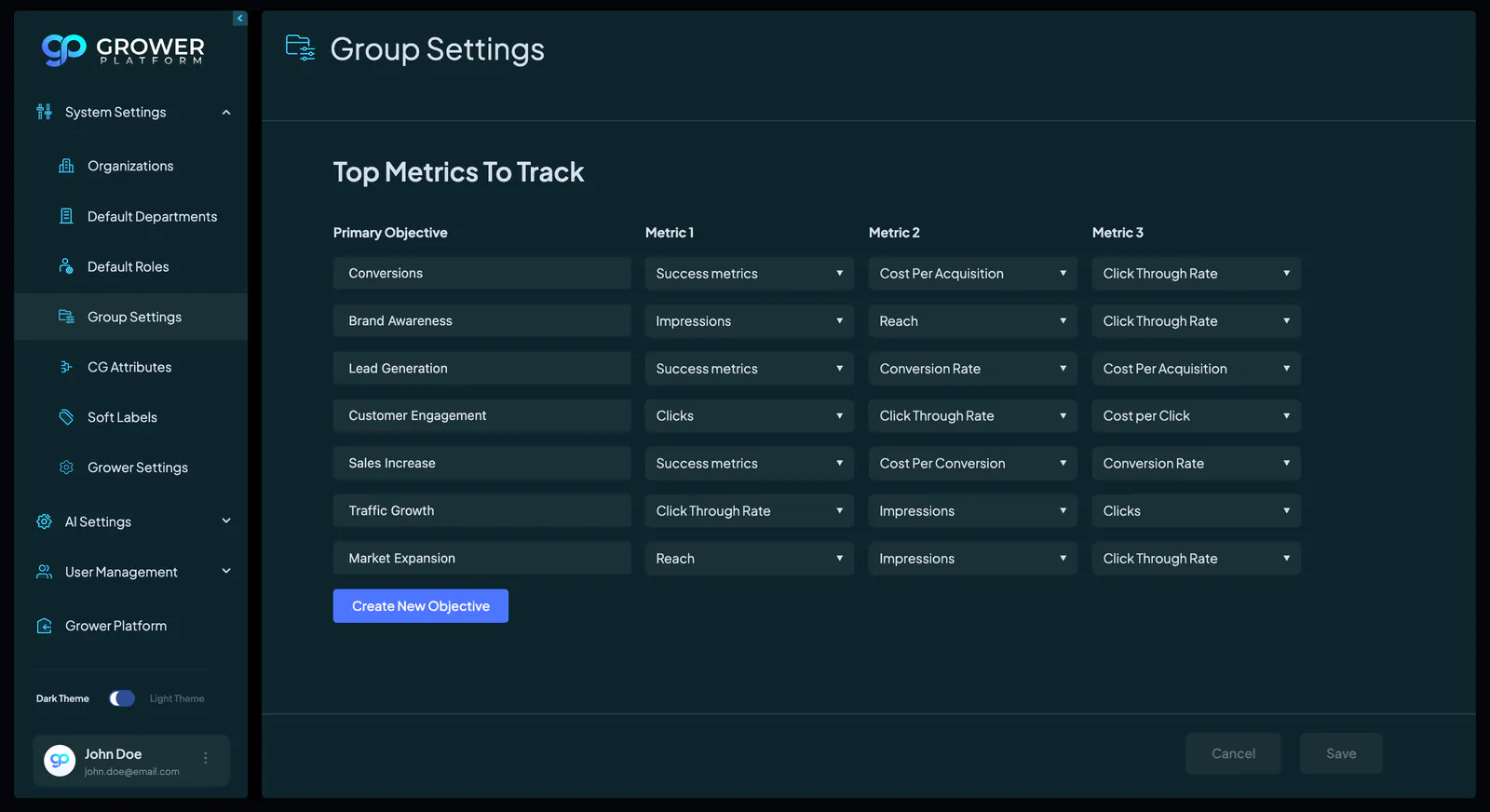
Users with the necessary permissions can review these predefined objectives and their metrics directly on the page.
Editing Existing Objectives & Metrics
The Grower Admin has the ability to update the metrics associated with an objective. To make changes, the admin must click on the metric they wish to update, which will open a dropdown menu showing all available metric options. Metrics such as Click Through Rate, Cost Per Click, Conversion Rate, and others are included.
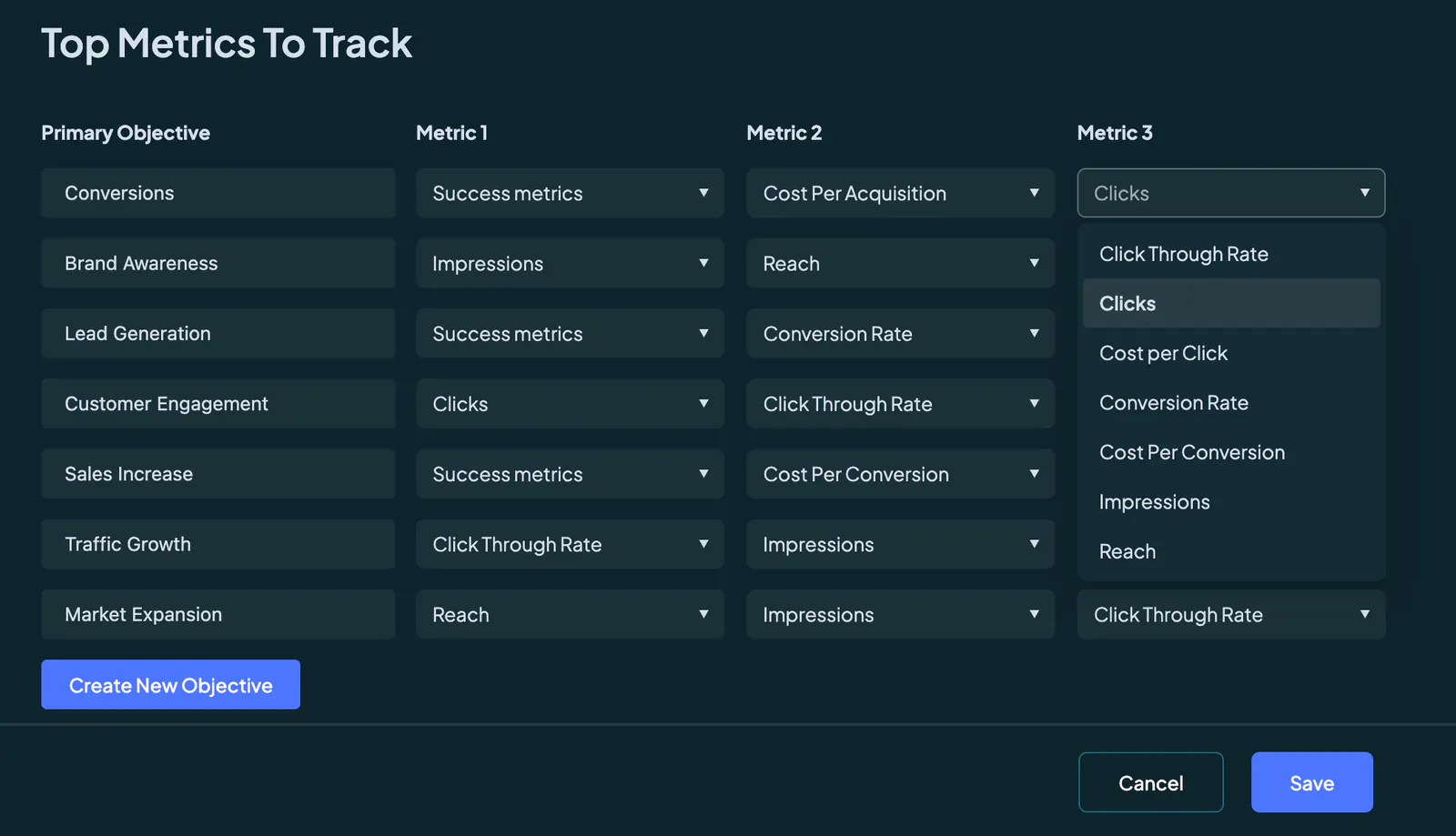
Once a new metric is selected, it is automatically removed from the dropdown menus for the other fields, ensuring that no two metrics are duplicated within the same objective.
Once the desired changes are made, the admin must click the "Save" button to apply the updates. If no changes are made, the "Save" button will remain disabled. Any adjustments to the metrics will take effect system-wide upon saving.
Creating A New Objective
To create a new objective, the user must click on the "Create New Objective" button underneath the last row. This opens a new row at the bottom of the table, where the admin can define the objective's name and the three associated metrics using the dropdown menu.
Remember that the name of the new objective must be unique. If the entered name matches an existing objective, the system will not allow it to be saved.
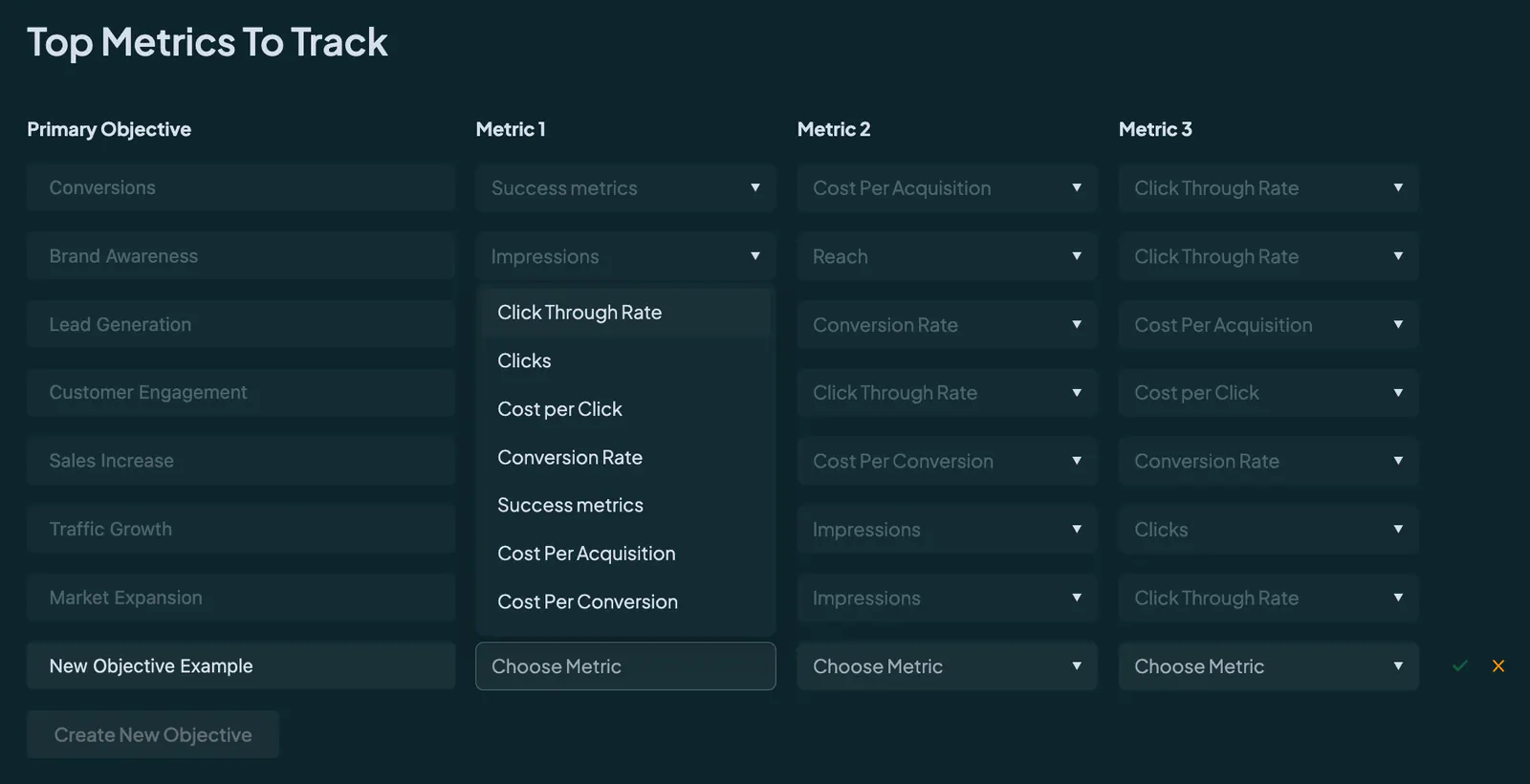
While creating a new objective, the rest of the table will be disabled, and no other actions can be performed until the admin either confirms or cancels the new objective.
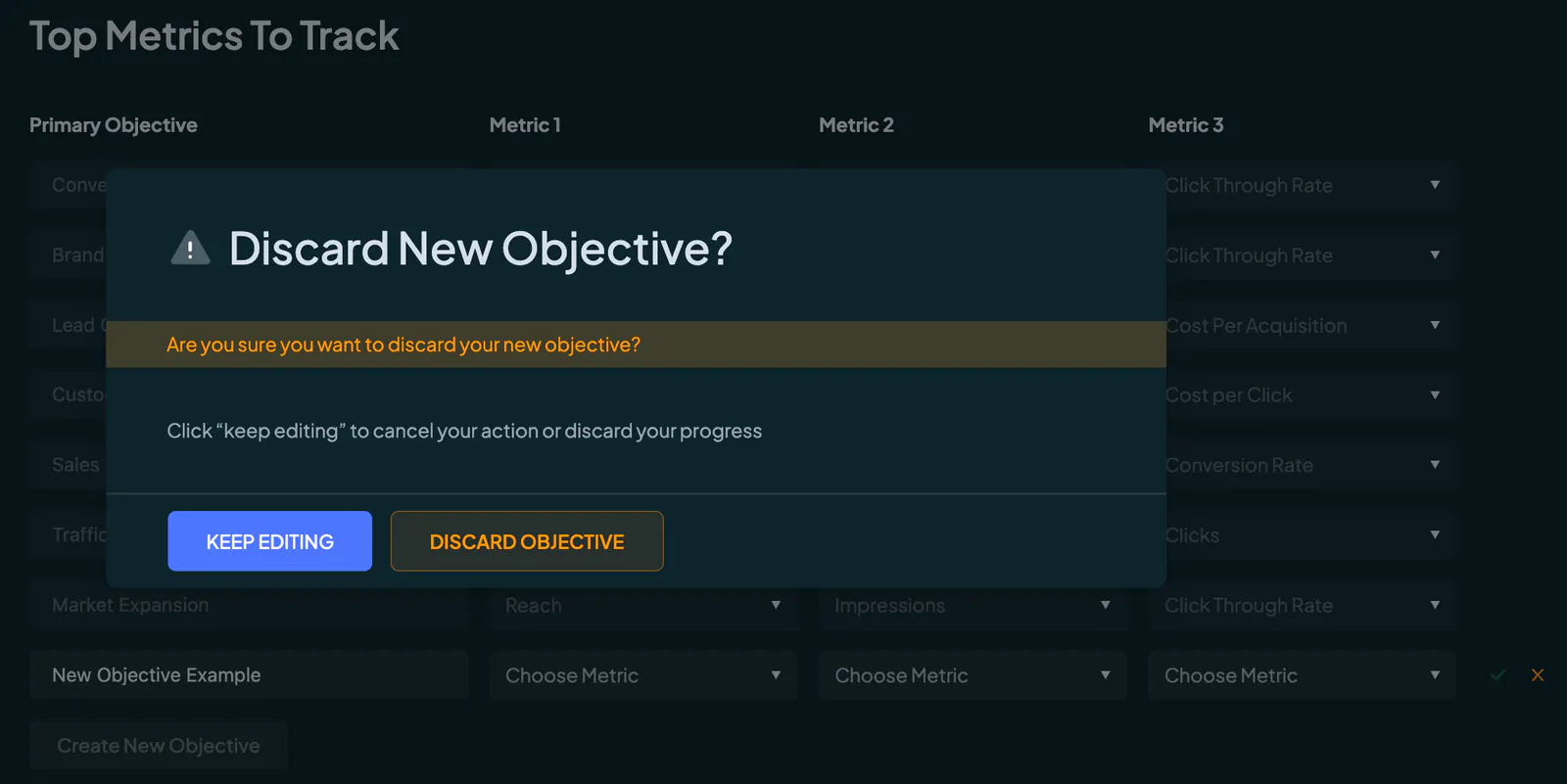
If the admin decides not to proceed with creating a new objective, clicking the "X" icon will discard the new row and restore the page to its original state without saving any changes.
Saving Or Discarding Changes
Whenever an admin edits existing objectives or creates new ones, the "Save" and "Cancel" buttons at the bottom of the page control the final outcome. Clicking "Save" will confirm and apply all changes made, while "Cancel" will discard any unsaved changes and revert the table to its previous state.
Permissions & Restrictions
This functionality is only accessible to users with the “Objectives & Top Metrics” permission enabled. This permission is exclusively granted to internal users within the Hovi Digital Lab organization. Users with this permission can view, edit, and create Objectives and Top Metrics, but only within the scope of their assigned roles.