
Lessons Learned Repository
On this page
This guide covers the Lessons Learned feature in Grower, a centralized repository for saving and managing key insights from campaigns. It explains how to view, add, remove, and filter learnings across categories like General, Deep, Targeted Recommendations, and Group Analysis, ensuring continuous strategy optimization.
The Lessons Learned feature empowers your marketing campaigns by preserving key insights and historical data, creating a foundation for continuous learning and optimization. By saving past learnings, your team can refine strategies, adopt corrective actions, and apply previously successful practices to future campaigns.
The Lessons Learned repository is accessible at all times from the main navigation bar under All Lessons Learned.
Viewing Lessons Learned
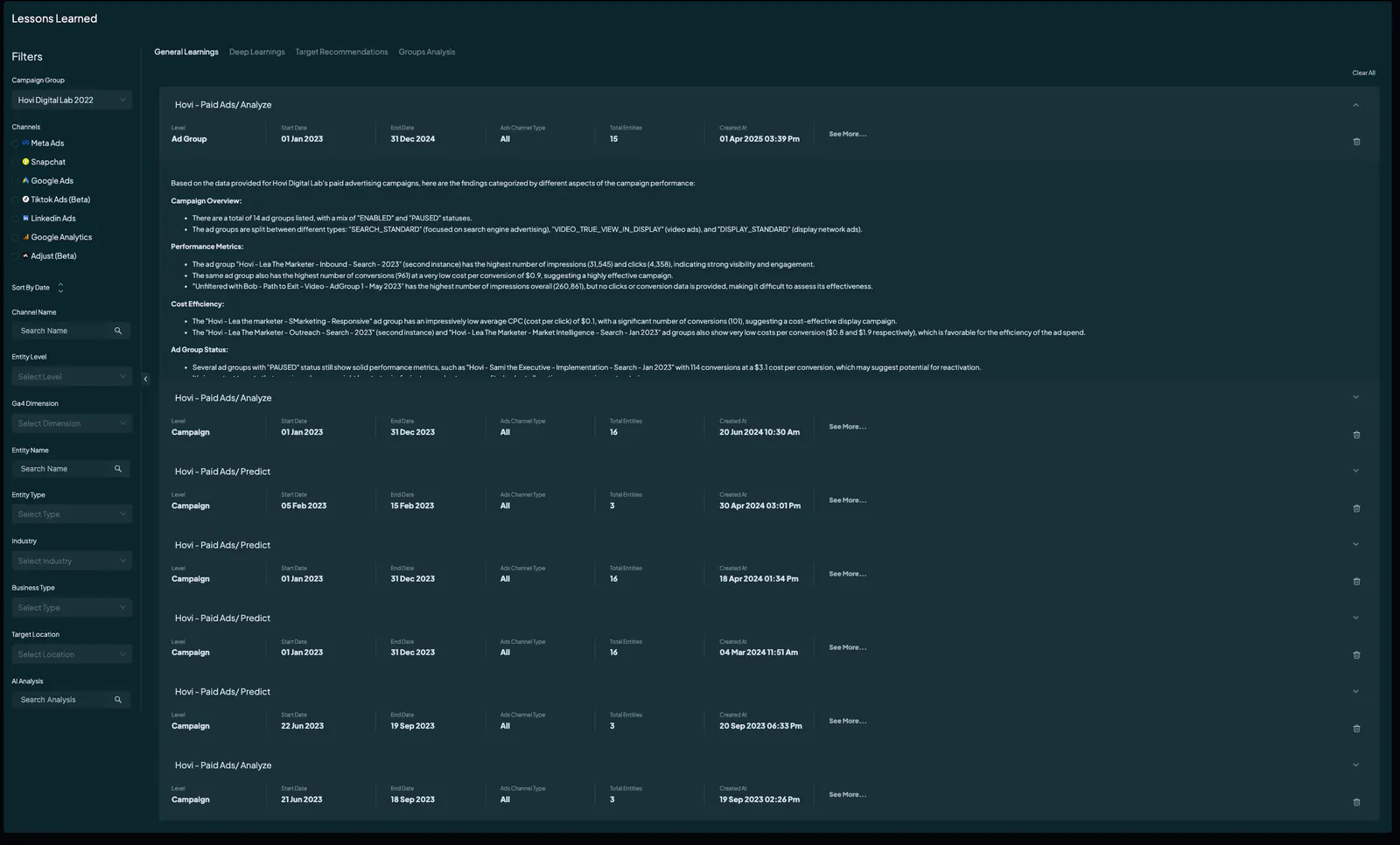
To view and manage all saved lessons, click All Lessons Learned in the main navigation bar. The page is divided into four tabs, each dedicated to a specific type of learning:
- General Learnings — Saved insights from General Analysis.
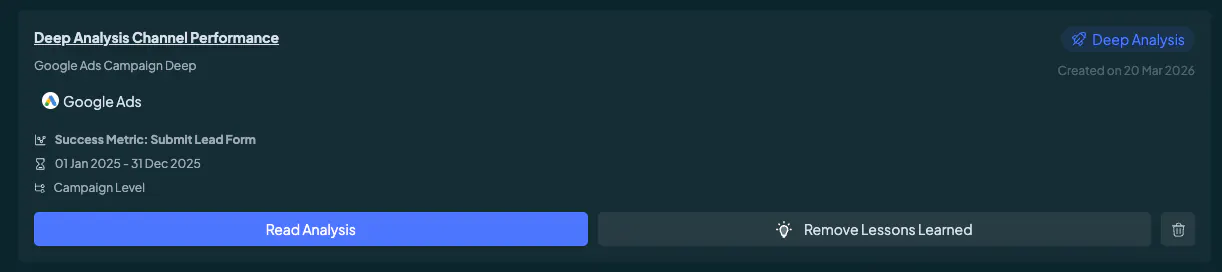
- Deep Learnings — Saved insights from Deep Analysis.
- Target Recommendations — Saved Targeted Recommendations from the Campaign Group Performance page.
- Groups Analysis — Saved Group Analyses.
Adding To Lessons Learned
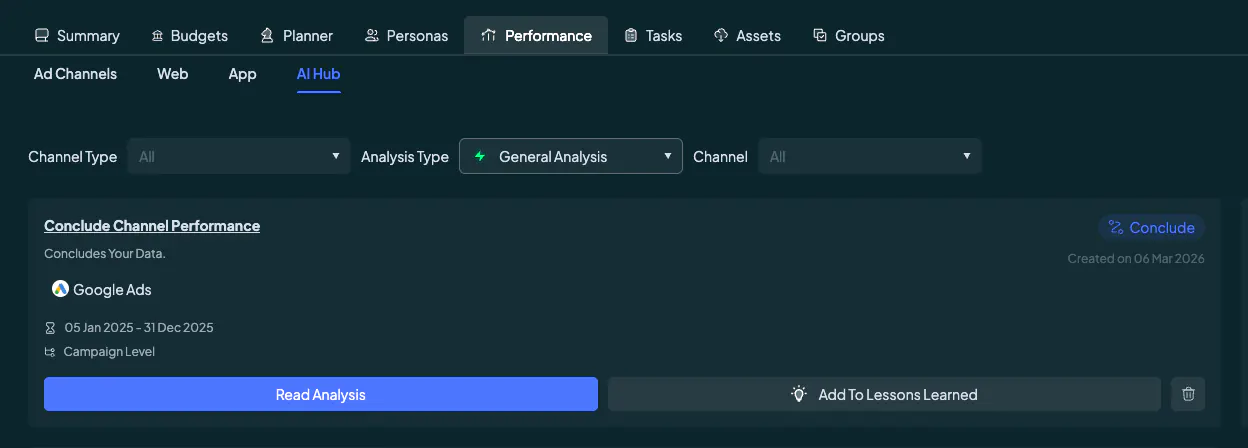
To save any analysis as a key insight, click the Add To Lessons Learned button on its card in the AI Knowledge Hub. The analysis will be stored in the corresponding tab on the All Lessons Learned page.
General Analysis
Open the AI Knowledge Hub from the Performance page of your Campaign Group. Filter by Analysis Type: General Analysis to locate the relevant card, then click Add To Lessons Learned. The insight will appear in the General Learnings tab.
Deep Analysis
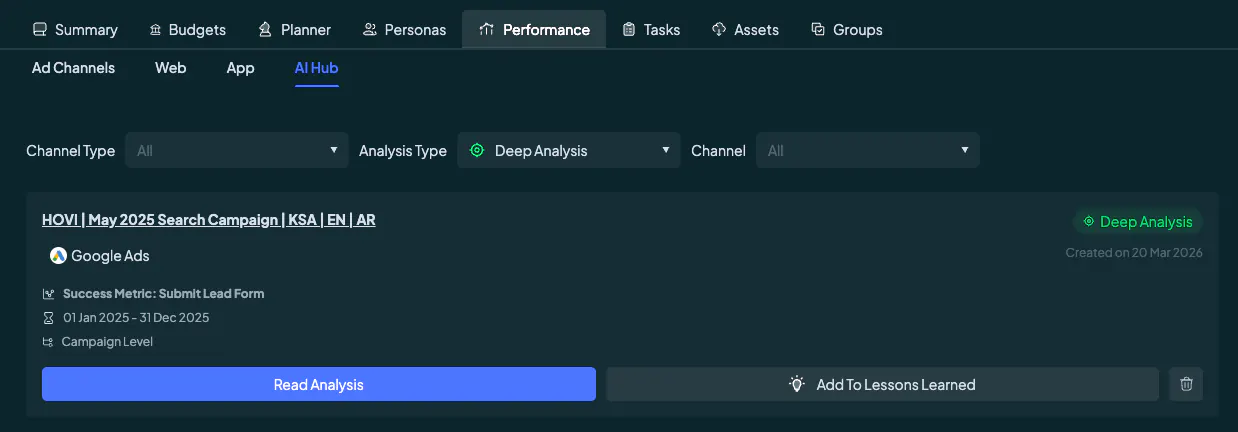
Deep Analysis cards are accessible from the AI Knowledge Hub at both the Campaign Group and Group levels. Filter by Analysis Type: Deep Analysis to locate the relevant card, then click Add To Lessons Learned. Saved insights will appear in the Deep Learnings tab.
Targeted Recommendations
Targeted Recommendations follow a two-step process before they can be saved:
- Navigate to the Targeted Recommendations section on the Campaign Group Performance page. Locate the recommendation and click Approve. The recommendation will move to the Actioned Recommendations tab.
- In the Actioned Recommendations tab, find the recommendation and click Add to Lessons Learned. It will appear in the Target Recommendations tab on the All Lessons Learned page.
Group Analysis
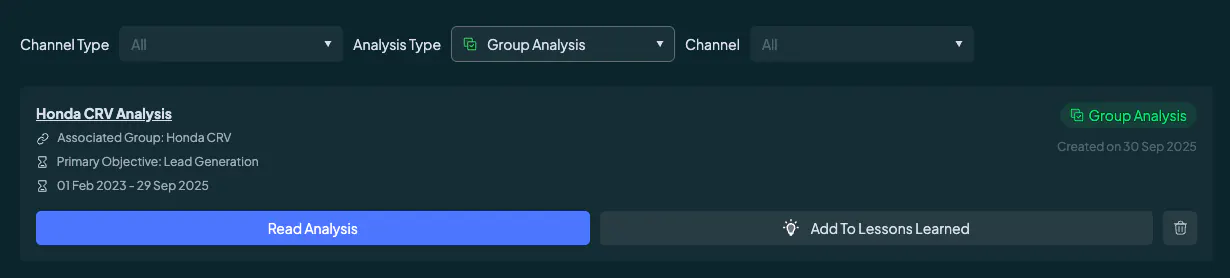
Group Analysis cards are accessible from the AI Knowledge Hub at both the Campaign Group and Group levels. Filter by Analysis Type: Group Analysis to locate the relevant card, then click Add To Lessons Learned. Saved insights will appear in the Groups Analysis tab.
Removing From Lessons Learned
Lessons can be removed either directly from the All Lessons Learned page or from the original analysis card in the AI Knowledge Hub.
From the All Lessons Learned Page
Navigate to All Lessons Learned via the main navigation bar. Locate the lesson you wish to remove and click the trash icon. This removes the entry from the repository but does not delete the original analysis from the AI Knowledge Hub.
To remove all lessons within a tab at once, click the Clear All button in the top-right corner above the first card. Use this option carefully, as it removes every lesson in the active tab simultaneously.
From the AI Knowledge Hub
For General Analysis, Deep Analysis, and Group Analysis lessons, you can also remove them directly from their source card in the AI Knowledge Hub. Locate the card and click Remove From Lessons Learned.
Note: Targeted Recommendations cannot be removed from within the Targeted Recommendations section. Use the All Lessons Learned page to remove these.
Filtering Lessons Learned
The All Lessons Learned page includes a collapsible filter panel on the left side. Click the arrow icon to expand or collapse it. Filters update results dynamically as you make selections, and you can reset all filters by clicking Clear All at the bottom of the panel.
Available filters vary by tab:
- General Learnings: Filters include Campaign Group, Channels, Channel Name, Entity Level, Ga4 Dimension, Entity Name, Entity Type, Industry, Business Type, Target Location, AI Analysis, and the ability to sort recommendations by date.
- Deep Learnings: In addition to all filters available in General Learnings, you can refine results by GA4 Property Name or Entity ID for more granular targeting.
- Target Recommendations: Filters include Campaign Group, Channels, and the ability to sort recommendations by date.
- Groups Analysis: Filters include Campaign Group, Groups, Channel Name, Entity Type, Industry, Business Type, Target Location, and AI Analysis, and the ability to sort recommendations by date.